
Desktop Configuration Application
Complete guide to the EyeOnKiosk desktop application for kiosk setup and management
EyeOnKiosk Desktop Configuration Application
The EyeOnKiosk desktop application is the administrative interface used by EyeOn support staff to configure, manage, and maintain kiosk systems. This application handles display configuration, touch input setup, environment selection, and system settings before launching the actual kiosk application.
This desktop application is installed by EyeOn support staff during initial kiosk setup or system updates. It provides a comprehensive interface for configuring multi-display setups, touch input mapping, and system behavior.
Desktop Application Installation
The EyeOnKiosk desktop application is installed by EyeOn support staff:
Installation Process
- 1.Installed during initial kiosk system setup
- 2.Updated during system maintenance visits
- 3.Deployed remotely by EyeOn technicians
- 4.Configured for specific center and environment
- 5.Tested and validated before handover
Requirements
- Windows 10/11 or Linux Mint system
- Administrative privileges for installation
- Network access to Portal CMS
- Multi-display setup (if applicable)
- Touch screen hardware (if applicable)
Application Interface
The desktop application features a clean, modern interface with two main sections:
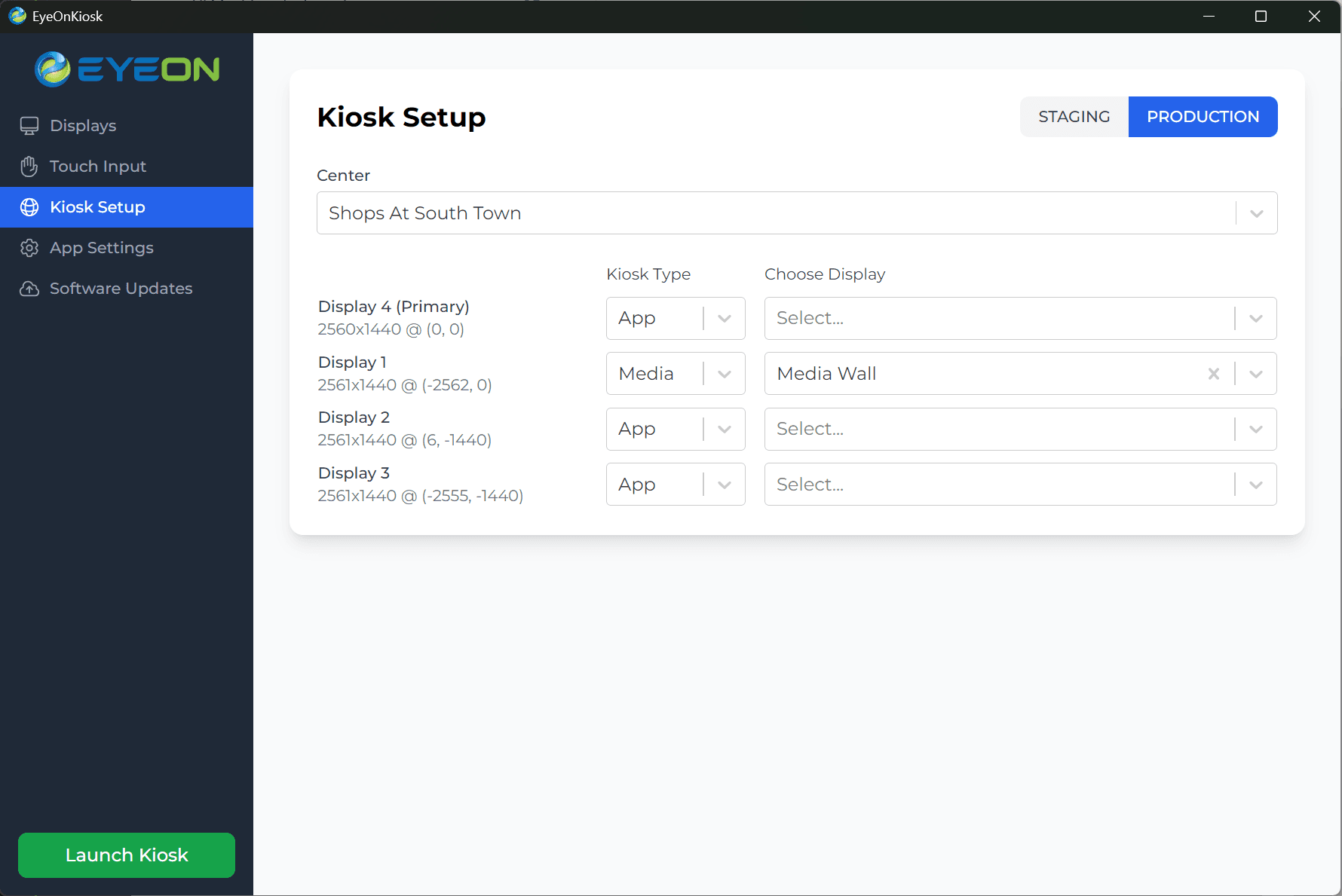
Left Navigation Sidebar
Dark blue sidebar containing navigation and controls:
- •EYEON logo at the top
- •Navigation menu with five main sections
- •Launch Kiosk button at the bottom
Main Content Area
White content area displaying configuration options for the selected section
- •Dynamic content based on selected navigation item
- •Interactive configuration controls
- •Real-time display visualization
- •Status indicators and feedback
Display Configuration
Comprehensive display setup for various kiosk configurations:
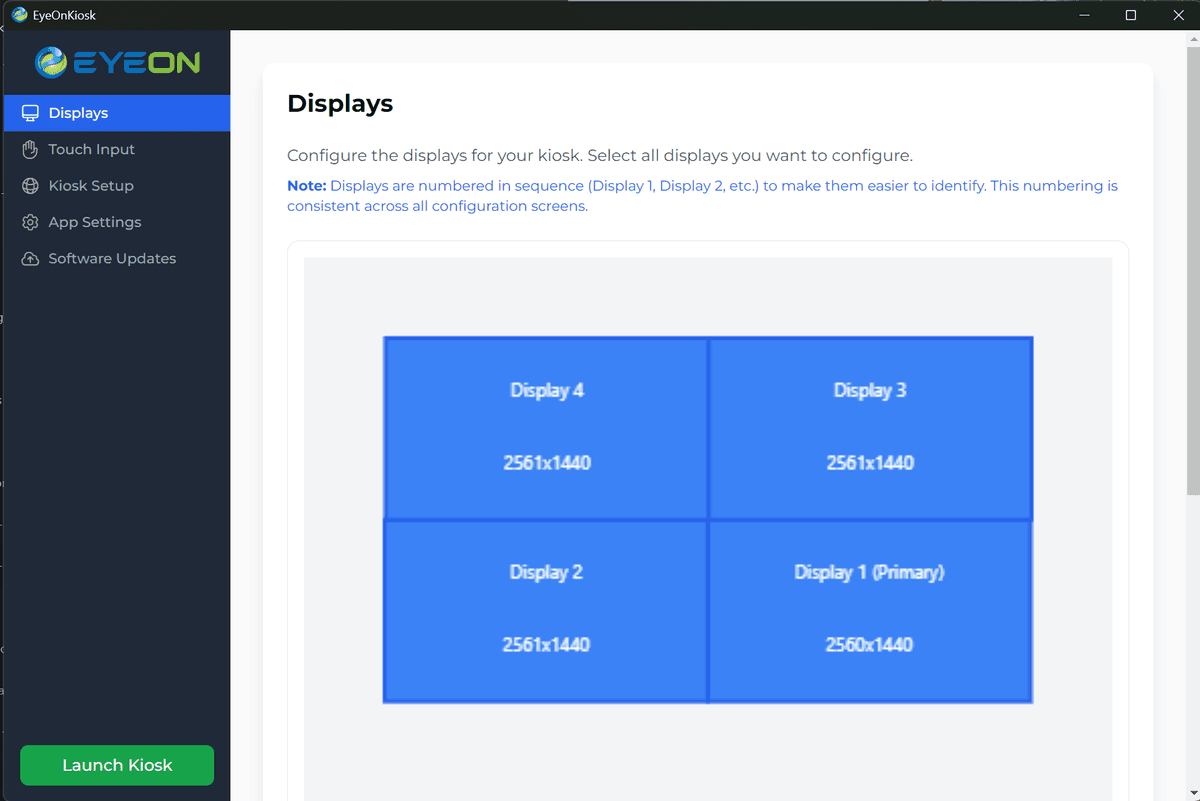
Display configuration showing multiple displays in portrait setup
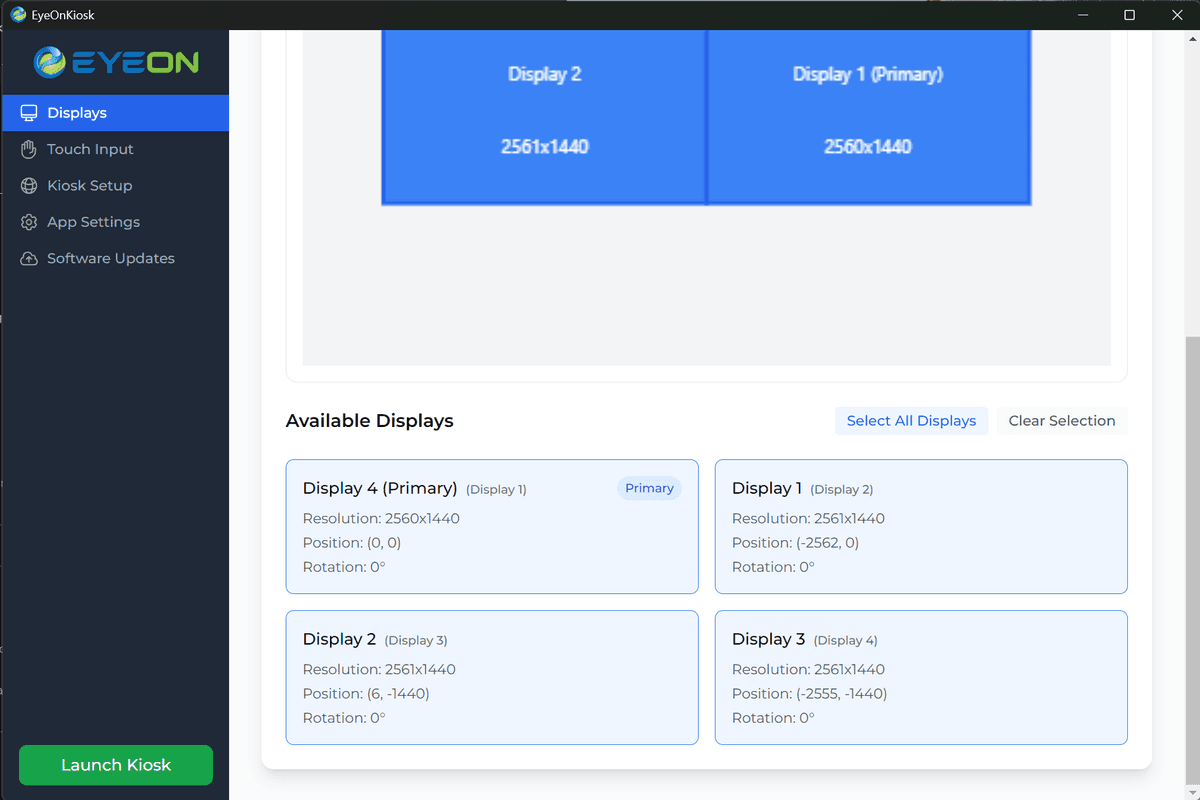
Visual representation of display arrangement and positioning
Dual Portrait Setup
Most common configuration with two displays in portrait orientation
- •Two displays side-by-side
- •Portrait orientation (90° or 270° rotation)
- •Typically 1080x1920 resolution
- •Primary display designation
- •Synchronized content display
Single Landscape Setup
Single display in landscape orientation for media walls
- •Large landscape display
- •0° rotation (standard landscape)
- •High resolution (4K preferred)
- •Media wall content display
- •Satellite display functionality
Multi-Display Grid
Complex setups with 4+ displays in grid formation
- •2x2 or larger grid arrangement
- •Mixed orientations supported
- •Coordinated content distribution
- •Primary and secondary display roles
- •Advanced positioning controls
Display Configuration Process
- 1.Detect and identify all connected displays
- 2.Set display rotation and orientation
- 3.Configure resolution and positioning
- 4.Designate primary display
- 5.Test display arrangement and content
- 6.Save configuration for kiosk launch
Touch Input Configuration
Setup and mapping of touch screen devices:
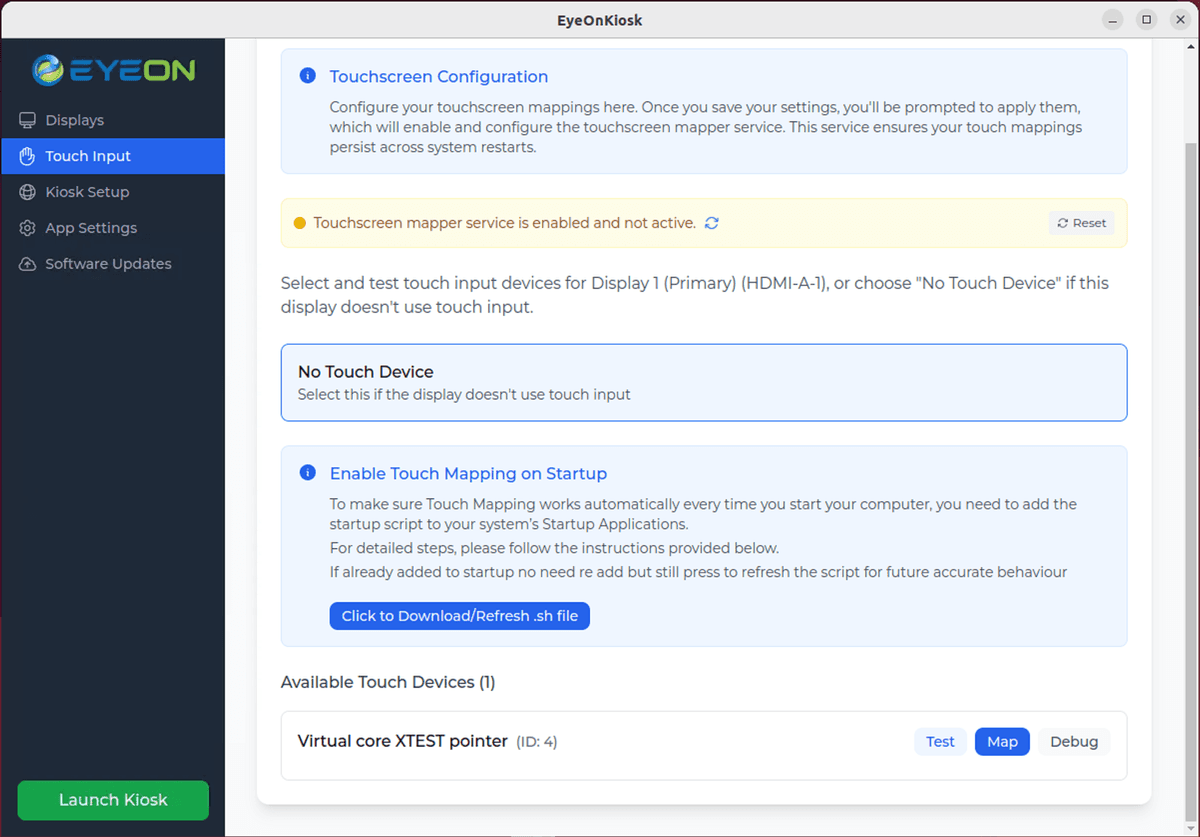
Touch input configuration showing device detection and mapping
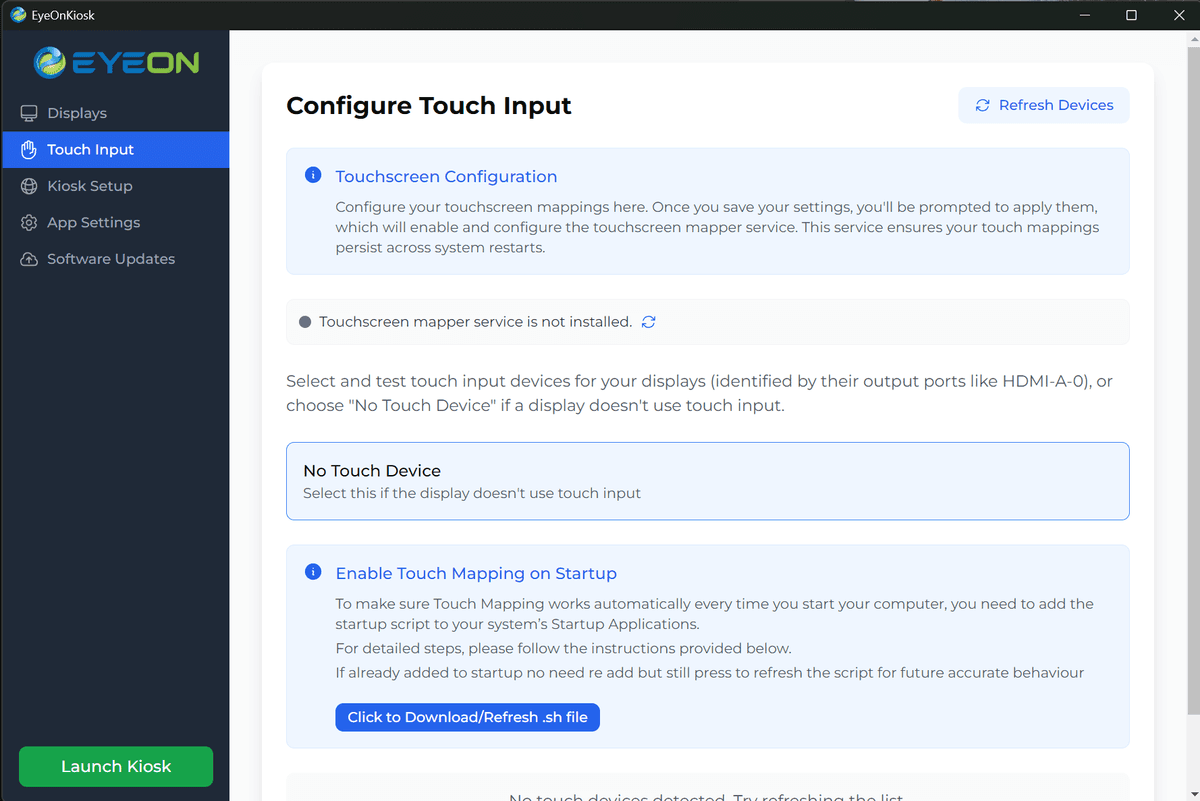
Configuration option for displays without touch input
Device Detection
The application automatically detects available touch devices:
- 1.Scan for connected touch devices
- 2.List devices with unique IDs
- 3.Identify device types and capabilities
- 4.Display device status and connectivity
Device Mapping
Map touch devices to specific displays:
- 1.Select target display for each device
- 2.Use 'Map' button to assign device to display
- 3.Test touch responsiveness and accuracy
- 4.Configure 'No Touch Device' for non-touch displays
- 5.Verify mapping across all displays
Startup Script Management
Ensure touch mapping persists across system reboots:
- 1.Download/refresh startup script via button
- 2.Script automatically added to system startup
- 3.Maintains touch device mapping consistency
- 4.Handles device reconnection after reboot
- 5.No manual intervention required after setup
Touch Testing
Test and verify touch functionality:
- •Test button for individual device testing
- •Debug button for troubleshooting
- •Full system touch verification
- •Calibration adjustment if needed
Kiosk Setup Configuration
Configure kiosk environment and display assignments:
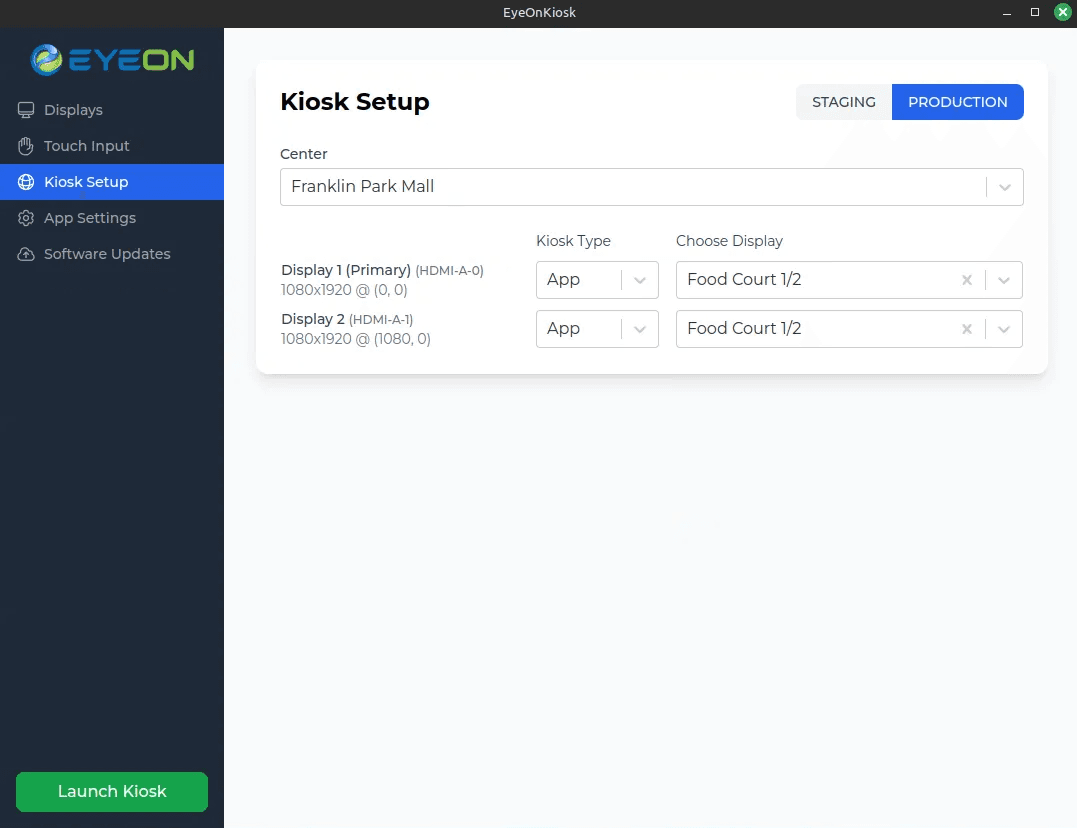
Kiosk setup interface showing environment and center selection
Environment Selection
Choose between Staging and Production environments:
Staging Environment
Development and testing by EyeOn personnel
- •Test new features and updates
- •Development Portal CMS instance
- •Safe testing environment
- •Not for public use
Production Environment
Live kiosk operation for public use
- •Live Portal CMS instance
- •Public-facing content
- •Real-time data synchronization
- •Production-ready configuration
Center Selection
Select the shopping center for kiosk operation:
- 1.Centers pulled from Portal CMS
- 2.Set by EyeOn technician during setup
- 3.Determines content and configuration
- 4.Cannot be changed by end users
- 5.Specific to each kiosk location
Display Type Assignment
Assign specific functions to each display:
App Display
Runs the full kiosk application interface
- •Interactive directory map
- •Store search and browsing
- •Center information
- •Sales and events
- •Full user interface
Media Display
Displays media content or media wall
- •Large format content display
- •Promotional materials
- •Video content
- •Static information
- •Media wall functionality
Application Settings
Configure system behavior and boot options:
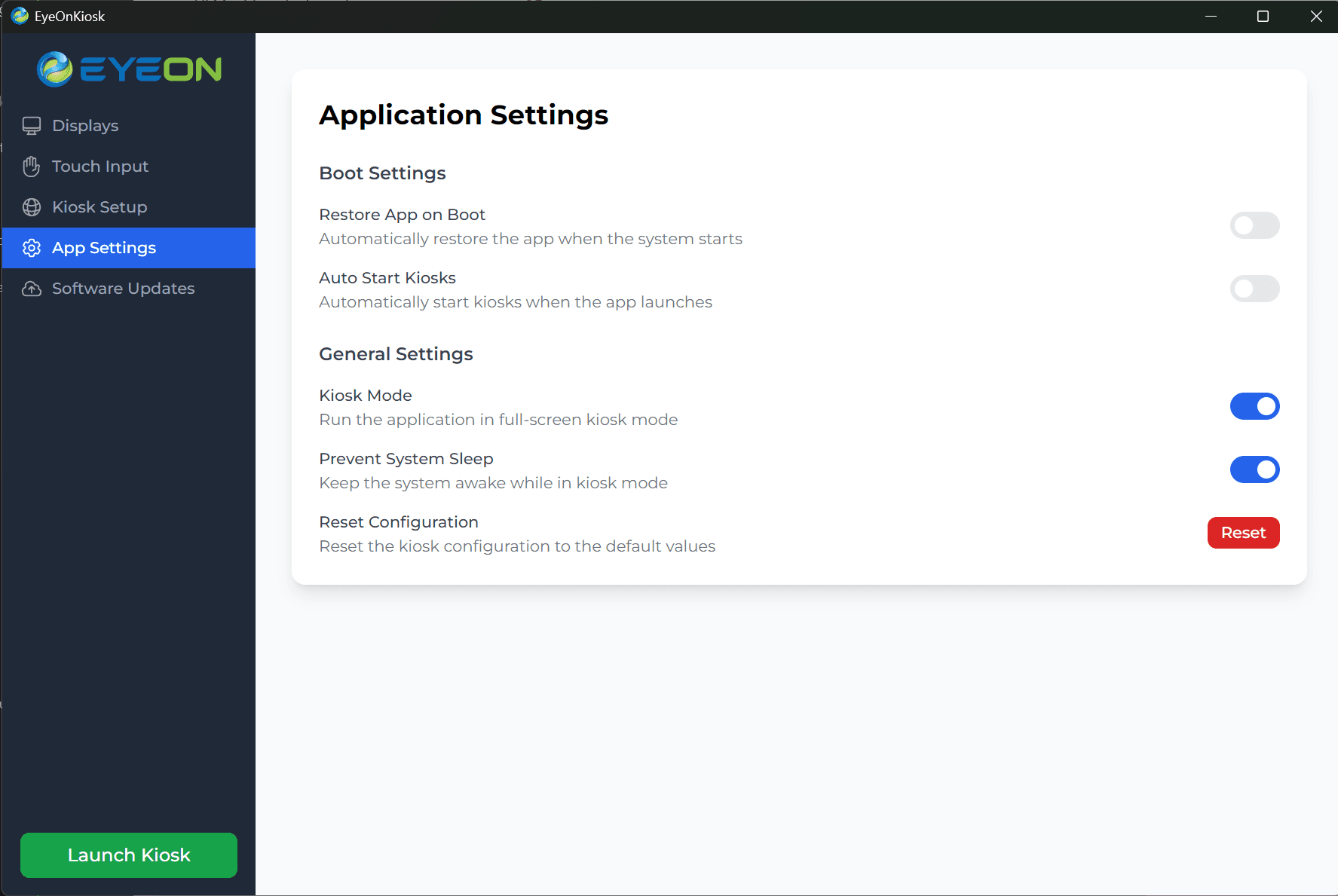
Application settings showing boot configuration and system behavior options
Boot Settings
Control application startup behavior:
Restore App on Boot
Automatically restore the desktop application when system starts
Ensure configuration interface is available after reboot
Auto Start Kiosks
Automatically start kiosk applications when desktop app launches
Streamline kiosk operation startup
Auto Start Kiosks Delay
Delay in seconds before starting kiosks (default: 20 seconds)
Allow system to fully initialize before launching kiosks
General Settings
Configure general application behavior:
Kiosk Mode
Run the application in full-screen kiosk mode
Enable immersive kiosk experience
Prevent System Sleep
Keep the system awake while in kiosk mode
Ensure continuous operation without sleep interruptions
Reset Configuration
Reset all kiosk configuration to default values
Restore factory settings if needed
Configuration Storage
Settings are stored locally on the kiosk machine:
- •Local configuration files on kiosk system
- •Automatic backup during updates
- •EyeOn can remote into machines for updates and maintenance
- •Settings persist across reboots and updates
Software Update Management
Manage application updates and version control:
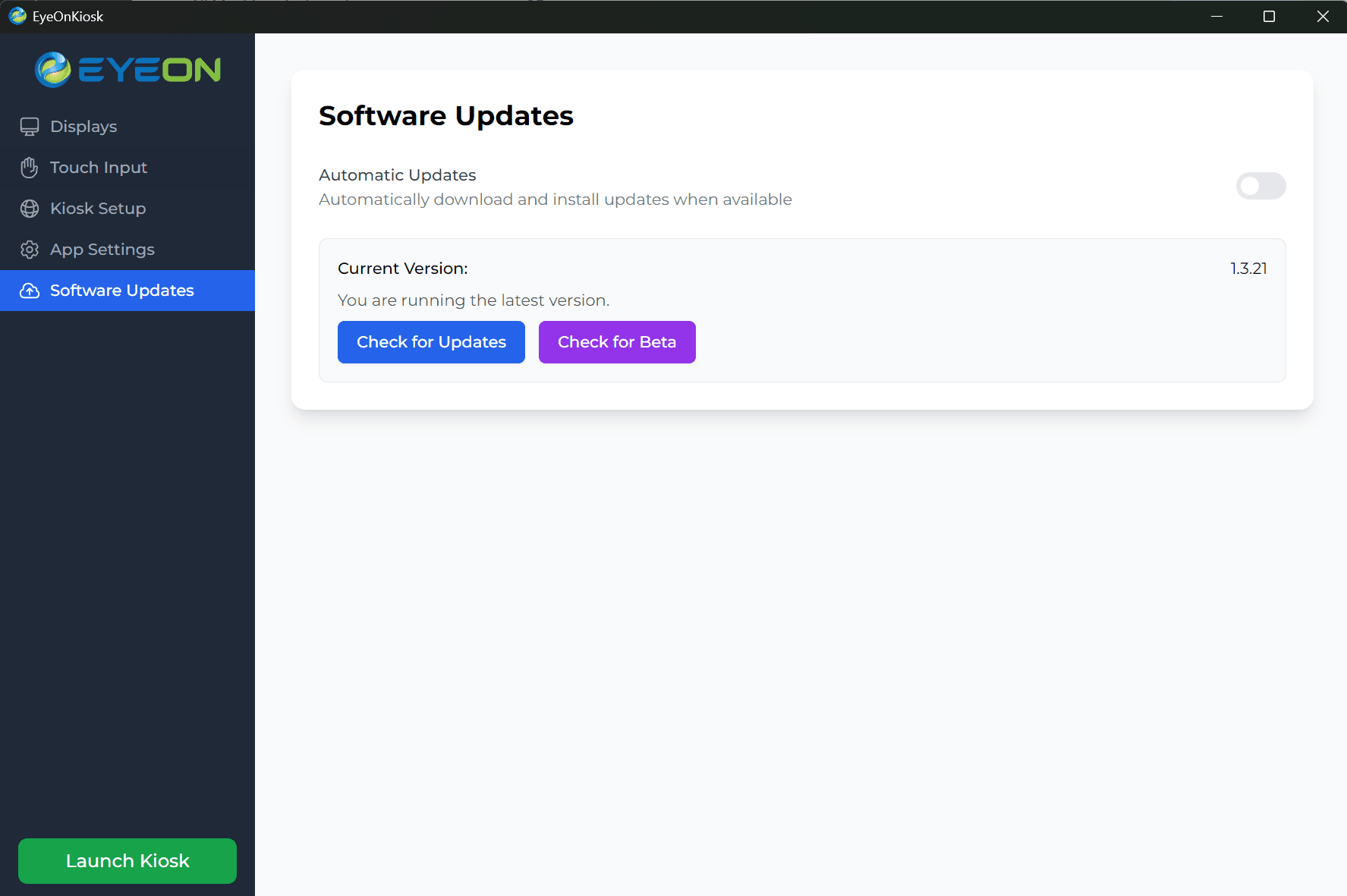
Software updates interface showing current version and update options
Automatic Updates
Automatically download and install updates when available
- •Enabled by default
- •Updates pushed from Portal CMS
- •Automatic installation and restart
- •No manual intervention required
Manual Updates
Manual checking and installation of updates
- •Check for Updates button
- •Manual update initiation
- •Version verification
- •Update status monitoring
Beta Updates
Access to beta versions for testing
- •Check for Beta button
- •EyeOn technician controlled
- •Testing and validation
- •Production deployment after testing
Update Process
How updates are delivered and installed:
- 1.Updates pushed from Portal CMS
- 2.Automatic download to kiosk system
- 3.Installation during maintenance windows
- 4.System restart if required
- 5.Verification of successful update
Kiosk Launch Process
How the desktop application launches the kiosk interface:
Launch Process
- 1.Click 'Launch Kiosk' button in sidebar
- 2.Desktop application minimizes or closes
- 3.Kiosk application launches in full-screen mode
- 4.Multi-display configuration activates
- 5.Touch input mapping becomes active
- 6.Portal CMS content loads and displays
Launch Features
- •Seamless transition from setup to operation
- •Full-screen kiosk mode activation
- •Multi-display content distribution
- •Touch interaction enabled
- •Real-time content synchronization
Common Issues and Solutions
Troubleshooting common desktop application issues:
Problem
Displays not detected
Solution
Check display connections, restart application, verify display drivers
Prevention
Ensure proper hardware connections before launching
Problem
Touch devices not mapping
Solution
Refresh device list, re-run mapping process, check startup script
Prevention
Test touch devices before mapping
Problem
Center not loading
Solution
Check network connectivity, verify Portal CMS access, refresh center list
Prevention
Ensure stable network connection
Problem
Kiosk won't launch
Solution
Check configuration settings, verify display assignments, review error logs
Prevention
Complete all configuration steps before launching
Problem
Updates not installing
Solution
Check network connectivity, verify Portal CMS access, restart application
Prevention
Maintain stable network connection
Maintenance and Support
Ongoing maintenance and support procedures:
Remote Support
EyeOn support capabilities:
- •Remote access to all kiosk machines
- •Configuration updates and changes
- •Software updates and maintenance
- •Troubleshooting and diagnostics
- •Performance monitoring
Local Maintenance
On-site maintenance procedures:
- •Hardware inspection and cleaning
- •Display calibration and adjustment
- •Touch screen maintenance
- •Network connectivity verification
- •Configuration backup and updates