
Kiosk Application Overview
Comprehensive guide to the EyeOn Kiosk Application for interactive mall directory displays
What is the EyeOn Kiosk Application?
The EyeOn Kiosk Application is a sophisticated digital directory system designed for shopping centers and malls. It provides visitors with an intuitive, touch-screen interface to navigate the mall, find stores, discover events, and access essential information. The application seamlessly integrates with the Portal CMS to deliver real-time content and updates.
Built specifically for public kiosk displays, the application features a clean, modern interface optimized for touch interaction. It serves as a comprehensive digital concierge, helping visitors make the most of their shopping experience while providing mall management with valuable insights into visitor behavior.
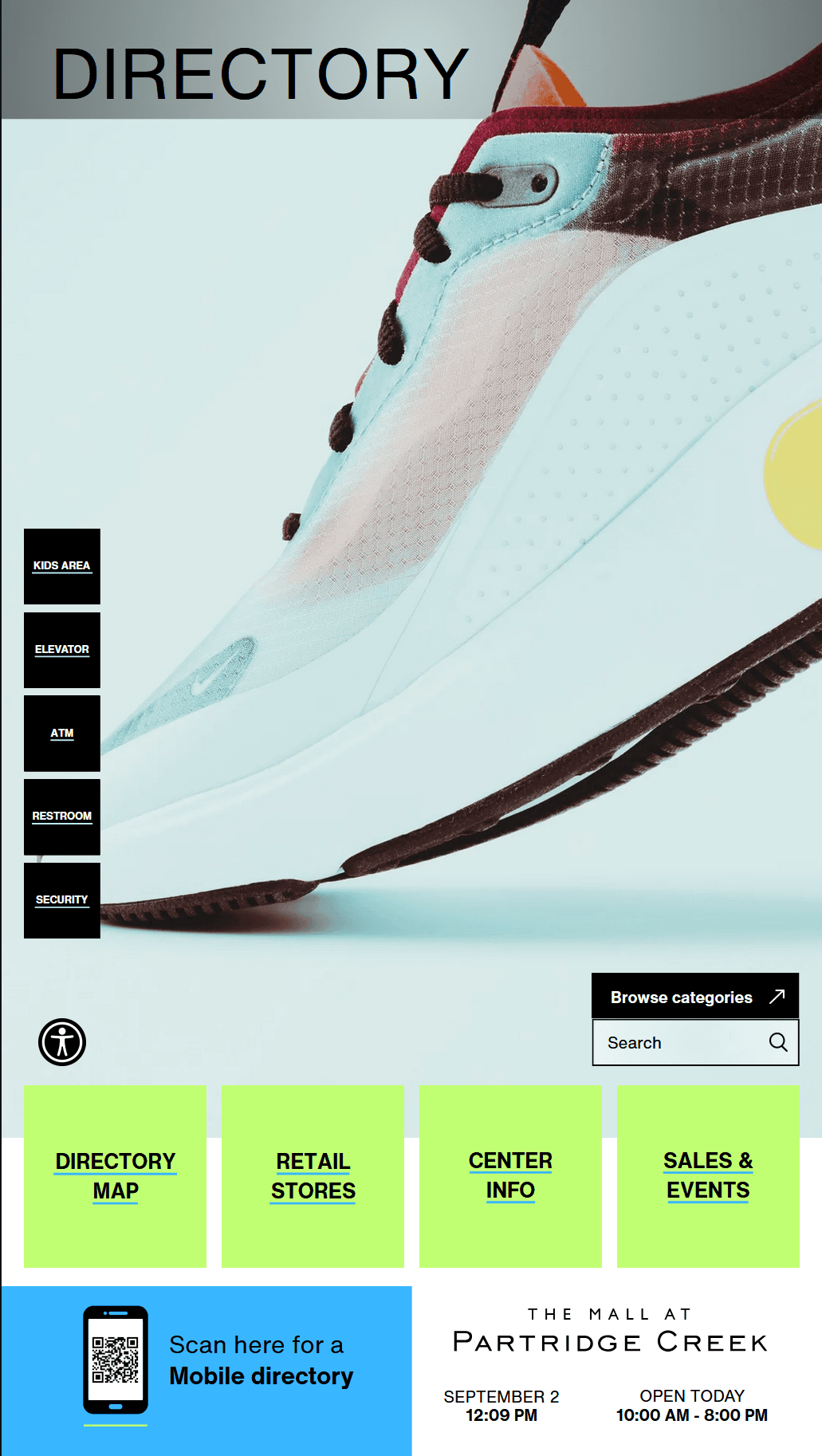
EyeOn Kiosk Application - Interactive mall directory with touch-optimized interface
Key Features
Core functionality and capabilities of the Kiosk Application
Interactive Directory Map
2D floor plan with store locations, amenities, and real-time navigation from kiosk to any retailer
Comprehensive Store Directory
Searchable store listings with categories, contact information, and detailed store profiles
Center Information Hub
Mall hours, contact details, amenities, and essential visitor information
Sales & Events Display
Real-time promotions, deals, and event listings with interactive browsing
Mobile Integration
QR code access to mobile version with location-specific routing
Accessibility Features
Built-in accessibility tools including display scaling and enhanced navigation
Display Ads Integration
Automatic ad display from Portal CMS when kiosk is idle, with instant touch-to-interact functionality
Interface Sections
Detailed breakdown of each major interface component
Main Navigation Interface
The primary interface consists of four main navigation areas accessible via large, touch-friendly buttons:
- •Directory Map: Interactive 2D mall floor plan with store locations and amenities
- •Retail Stores: Comprehensive store directory with search and filtering capabilities
- •Center Info: Mall information, hours, contact details, and visitor amenities
- •Sales & Events: Current promotions, deals, and upcoming events with interactive browsing
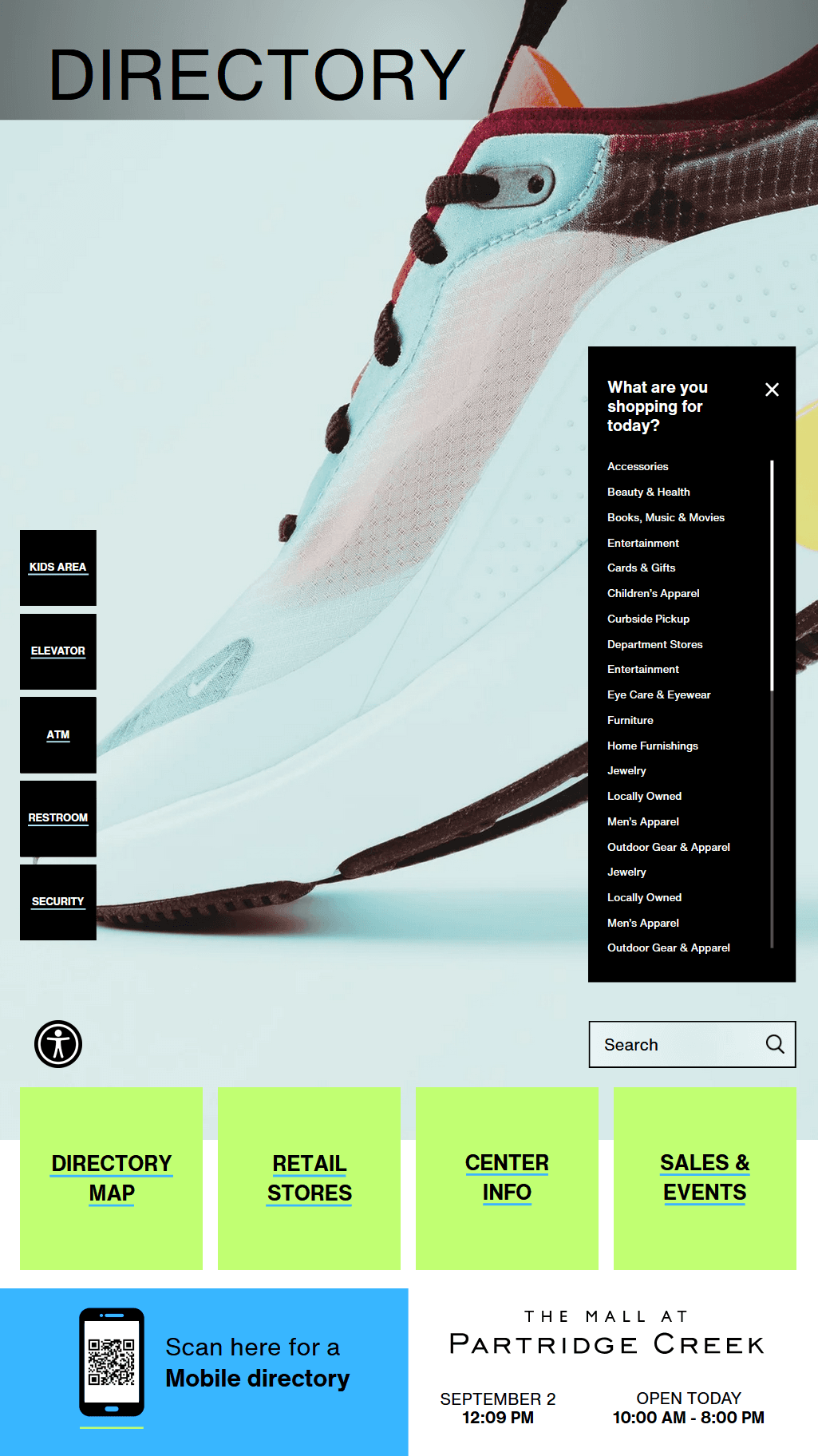
Main navigation interface with four primary sections
Directory Map Features
The interactive map provides comprehensive wayfinding and store location services:
2D Floor Plan Display
Detailed mall layout with store locations, walkways, and amenities
- •Store locations marked with light blue rectangles
- •Amenities highlighted in light green (e.g., Lush, Gloria Jean's Coffee)
- •Coming Soon labels for future tenants
- •Parking areas marked with 'P' icons
Amenity Filtering
Left sidebar with quick access to essential amenities:
Available amenities:
- •Kids Area (stroller icon)
- •Elevator (up/down arrow icon)
- •ATM (dollar sign icon)
- •Restroom (male/female figures icon)
- •Security (shield icon)
Level Navigation
Easy switching between mall levels:
- •Upper Level and Lower Level buttons
- •Current level highlighted in light blue
- •Reset button to return to default view
Zoom Controls
Map zoom functionality for detailed viewing:
- •Plus (+) and minus (-) buttons for zoom control
- •Pinch-to-zoom gesture support on touch screens
- •Reset button to return to default zoom level
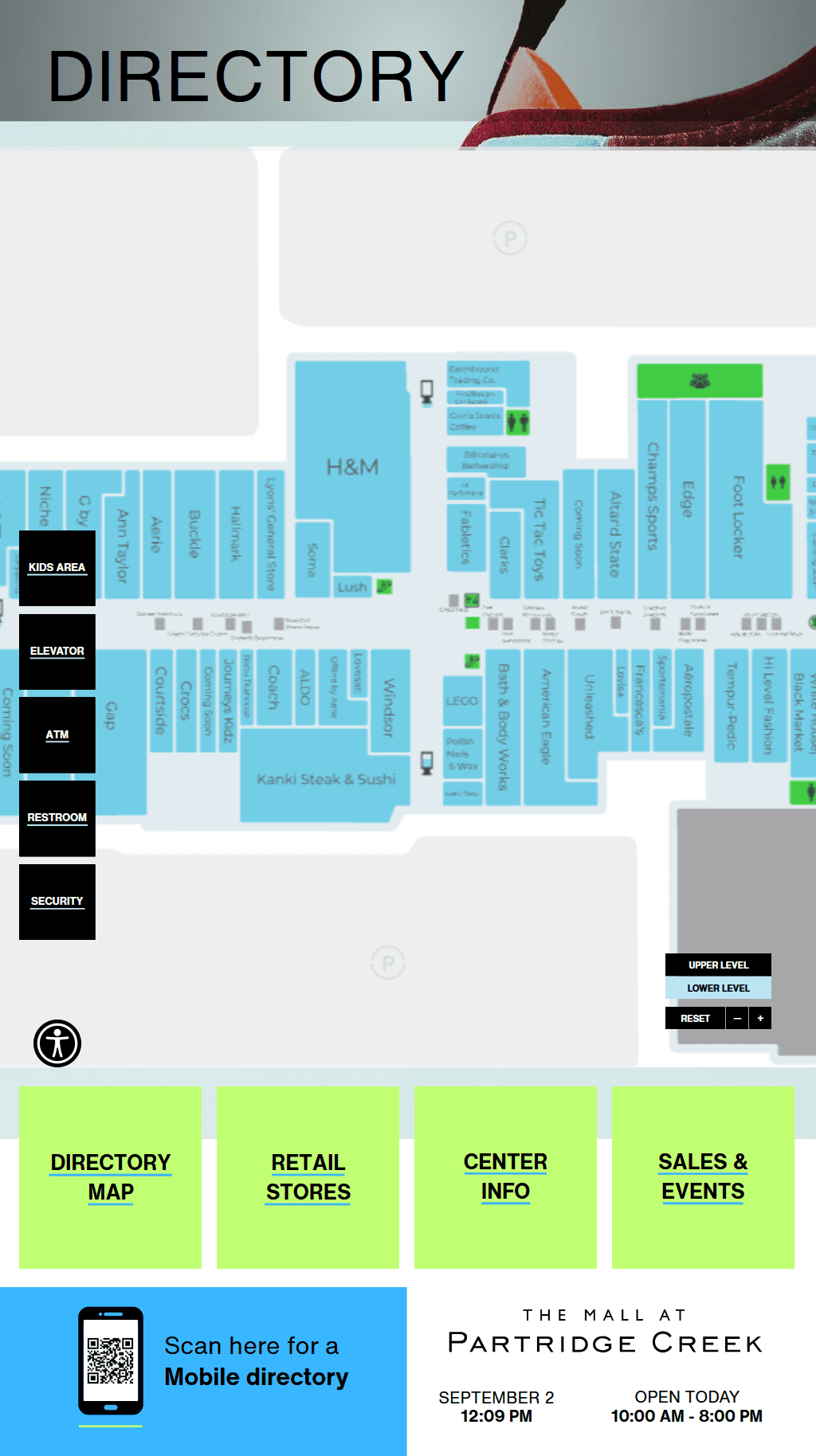
Interactive directory map with store locations, amenities, and navigation controls
Store Directory & Search
Comprehensive store directory with advanced search and filtering capabilities:
Category Filtering
Browse stores by category using the dropdown menu
Available categories:
Search Functionality
Text-based search for stores, brands, and services
- •Search by store name or brand
- •Search by tags and keywords
- •Real-time search results as you type
- •Clear search with X button
Store Detail Popups
Detailed store information when tapping on store listings
- •Store name and branding
- •Location (e.g., 'Lower Level')
- •Contact phone number (clickable)
- •Store description and details
- •Get directions from dropdown
- •Map It button for navigation
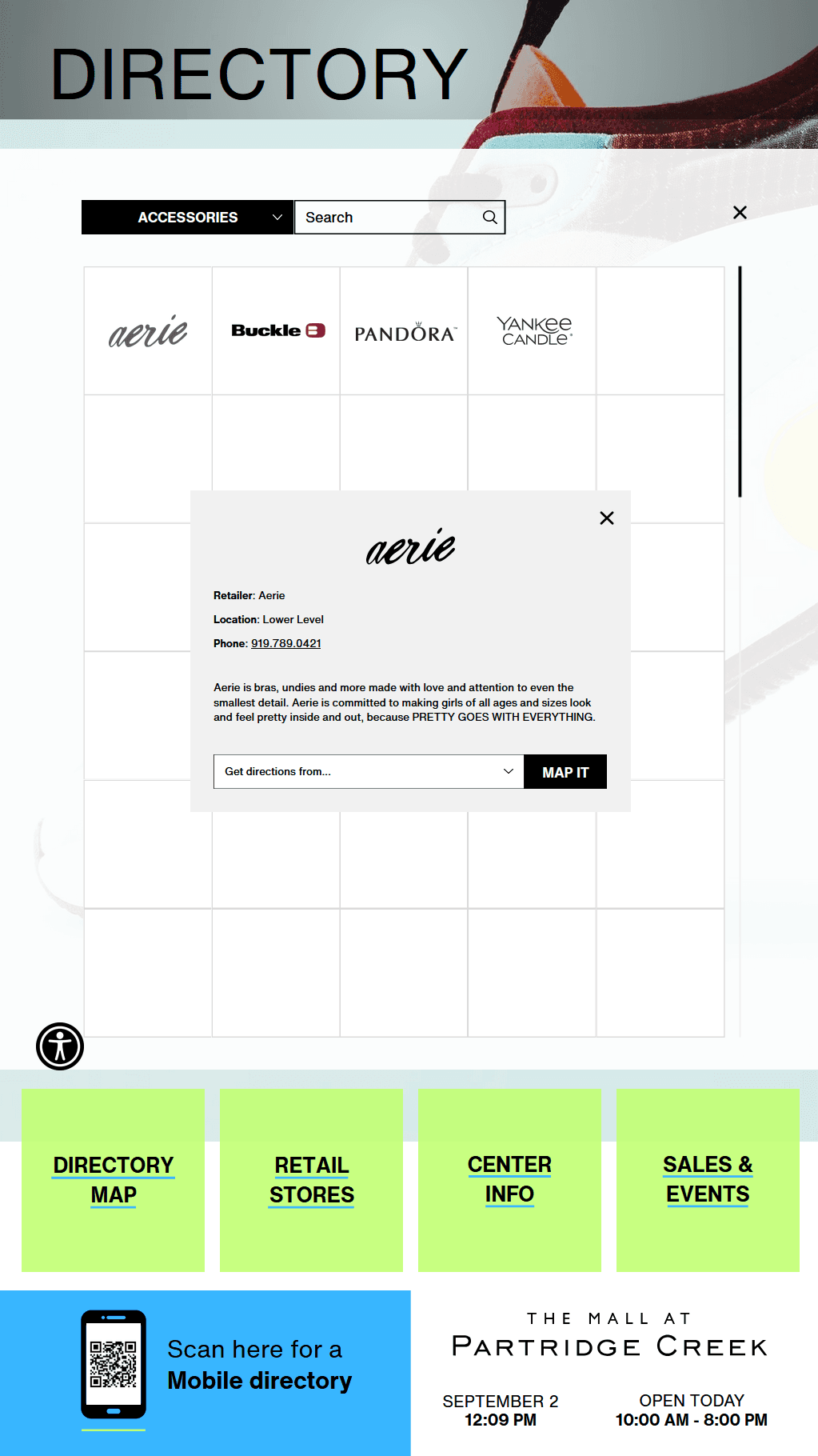
Store directory with search, filtering, and detailed store information
Center Information
Comprehensive mall information and visitor services:
Contact Information
Essential contact details for mall services:
- •Management: 919.787.8993
- •Security: 919.787.8993
- •Guest Services: 919.787.8993
- •Non-Emergency Services: 919.787.8993
Leasing Information
Contact details for leasing opportunities:
- •Local Leasing: leasing@shoppartridgecreek.com, (919) 787-8993
- •Permanent Leasing: Same contact information
- •Advertising: Same contact information
Operating Hours
Current mall operating schedule:
- •Monday-Friday: 10:00 AM - 8:00 PM
- •Saturday: 10:00 AM - 9:00 PM
- •Sunday: 11:00 AM - 7:00 PM
Visitor Amenities
Available services and amenities:
- •Complimentary wheelchairs
- •Complimentary WiFi access
- •ATM machines
- •Charging stations for phones and devices
- •Mall directories
- •Stroller rentals
- •Valet parking
Social Media
Follow the mall on social platforms:
- •Instagram: @themallatpartridgecreek
- •Facebook: @themallatpartridgecreek
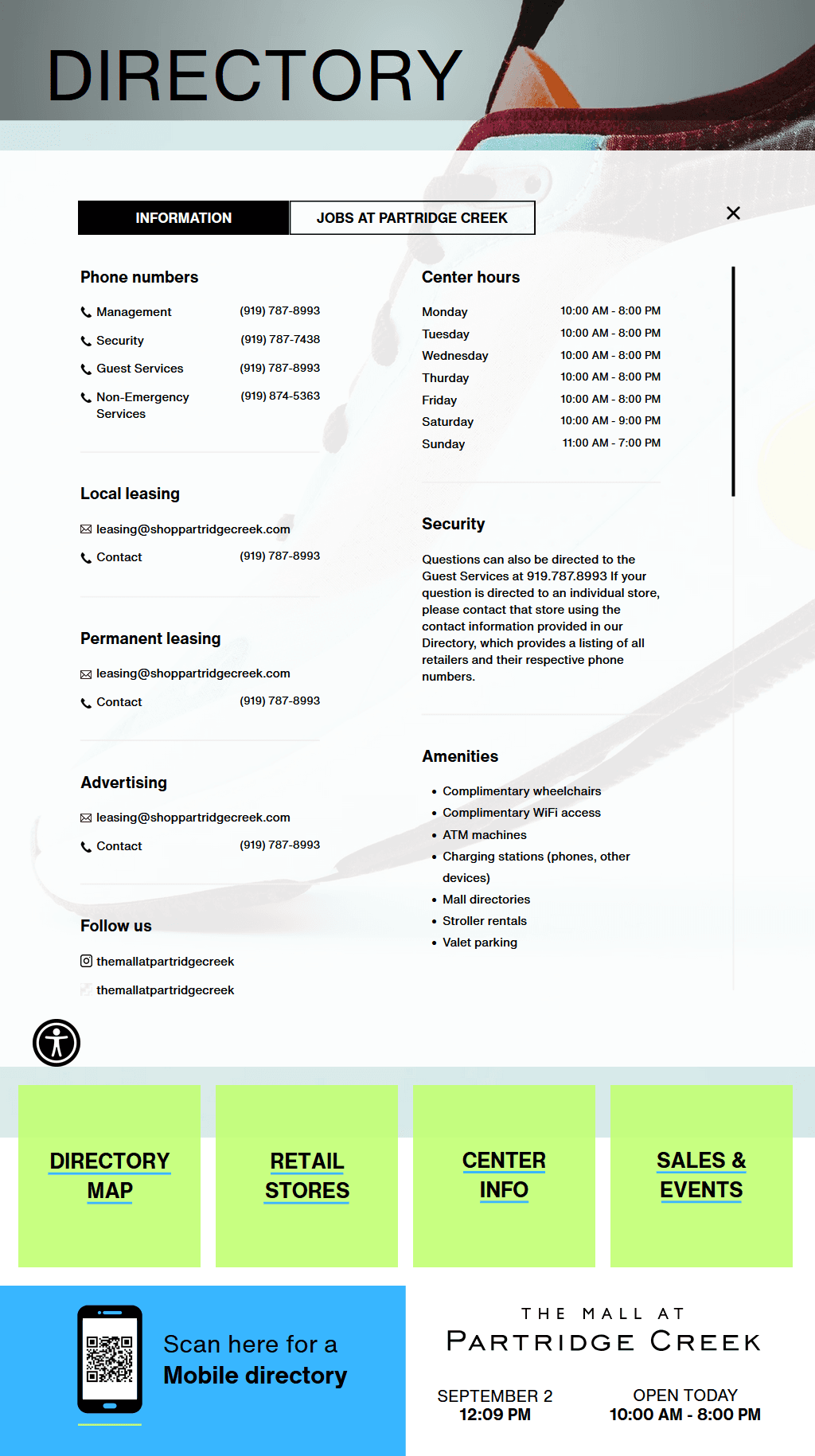
Center information with contact details, hours, and visitor amenities
Sales & Events Display
Dynamic content display for promotions and events:
Sales & Deals
Current promotional offers and discounts:
- •Visual promotional cards with store branding
- •Discount percentages and offer details
- •Valid until dates for time-sensitive offers
- •Store-specific promotional content
Event Listings
Upcoming events and special activities:
- •Date-based event navigation (All, specific dates)
- •Event details with descriptions and images
- •Valid until dates for events
- •Visual event cards with engaging imagery
Content Management
Real-time content updates from Portal CMS:
- •Automatic content updates from Portal CMS
- •No manual kiosk updates required
- •Real-time synchronization with mall management
- •Consistent branding and messaging
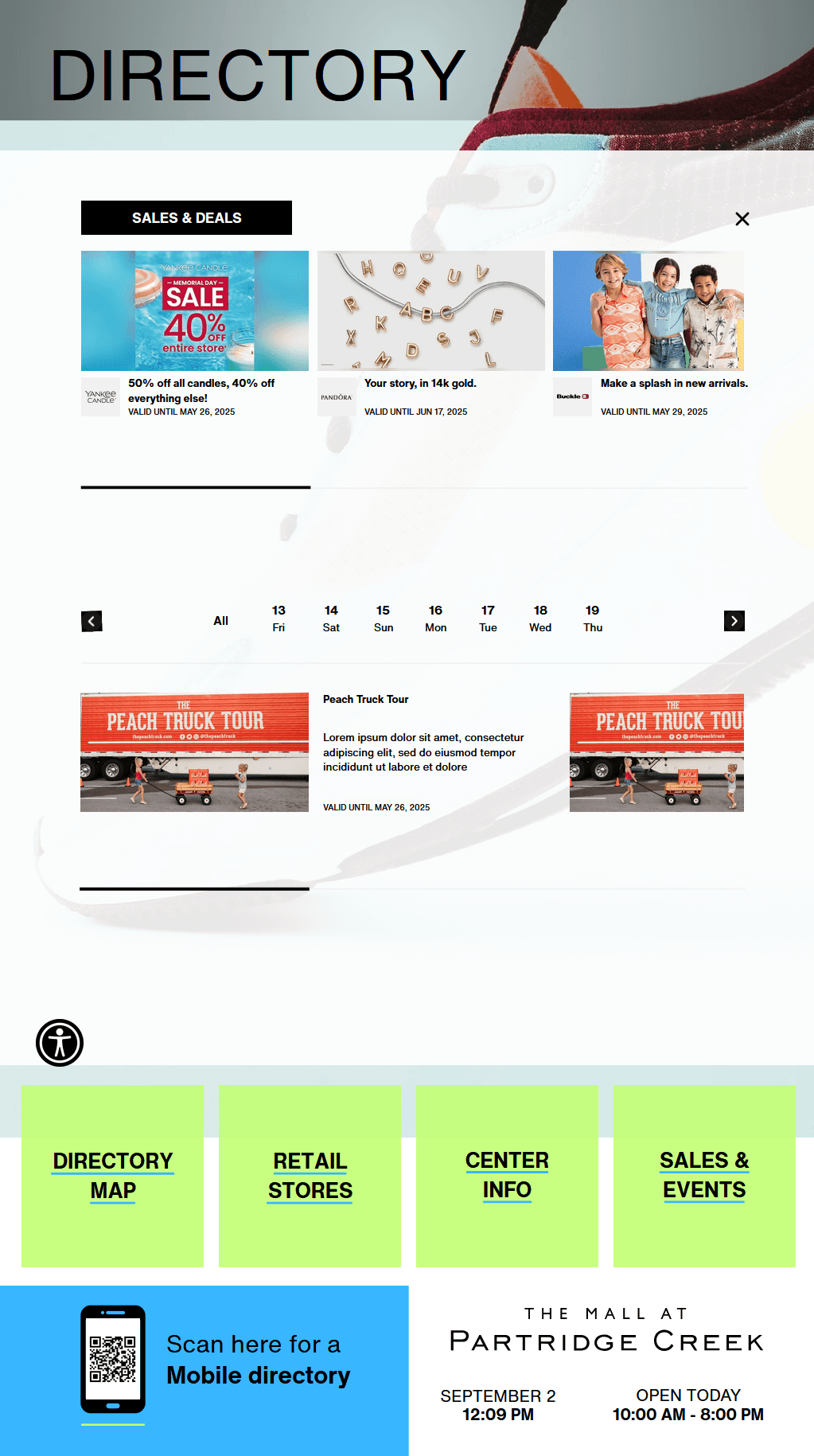
Sales and events display with current promotions and event listings
Display Ads Integration
The kiosk application features intelligent dual-mode operation, automatically switching between interactive touch interface and advertising content based on user interaction.

Kiosk in advertising mode showing scheduled ads from Portal CMS
Dual-Mode Operation
The kiosk operates in two distinct modes that automatically switch based on user interaction:
Interactive Mode
Active when users are interacting with the kiosk
Trigger: User touches the screen
- •Full touch interface functionality
- •Directory map, store search, and center information
- •Sales & events display and mobile integration
- •Accessibility features and navigation tools
- •Immediate response to touch input
Advertising Mode
Active when kiosk is idle and no user interaction
Trigger: 30 seconds of no user interaction
- •Displays ads from Portal CMS Display Ads system
- •Automatic rotation through scheduled ad content
- •High-resolution video and image advertisements
- •Targeted content based on display configuration
- •Seamless transition back to interactive mode
Ad Content Management
All advertising content is managed through the Portal CMS Display Ads system:
Example Advertisements

Promotional advertising content with clear branding and messaging

Event advertising content showcasing special promotions and activities
Content Sources
Ads are pulled from the Portal CMS Display Ads section
- •Uploaded by center managers and staff
- •Scheduled with specific start and end dates
- •Targeted to specific displays or all kiosks
- •Supports video (MP4) and image (JPG, PNG) formats
- •Maximum 25MB file size with 4K resolution support
Display Targeting
Precise control over where ads are displayed
- •Target specific kiosk displays or all displays
- •Portrait orientation (2160x3840) for kiosk screens
- •Landscape orientation (3840x2160) for media walls
- •Real-time display availability checking
- •Automatic content optimization for display type
Scheduling & Play Order
Advanced scheduling and content rotation management
- •Set start and end dates for ad campaigns
- •Drag-and-drop play order management
- •Automatic activation and deactivation
- •Overlap handling for multiple ads
- •Real-time publishing to all displays
User Experience Flow
The seamless transition between advertising and interactive modes:
Idle State
Kiosk displays advertising content from Portal CMS
Duration: Continuous until user interaction
User Interaction
User touches the screen to access kiosk functionality
Response: Immediate transition to interactive mode
Interactive Mode
Full kiosk application functionality available
Duration: While user is actively using the kiosk
Return to Idle
After 30 seconds of no interaction, returns to ad mode
Transition: Smooth fade back to advertising content
Display Ads Technical Requirements
Technical specifications for optimal ad display performance:
File Formats
- •Video: MP4, MOV, AVI (max 25MB)
- •Images: JPG, PNG, GIF (max 25MB)
- •Resolution: 4K (3840x2160 or 2160x3840)
- •Duration: Videos limited to 30 seconds
- •Compression: Optimized for web display
Display Compatibility
- •Portrait kiosk displays: 2160x3840 resolution
- •Landscape media walls: 3840x2160 resolution
- •Touch screen optimization for ad content
- •High contrast and readability requirements
- •Automatic aspect ratio adjustment
Performance Requirements
- •Smooth transitions between modes
- •Fast loading of ad content
- •Reliable internet connection for content updates
- •Automatic content refresh from Portal CMS
- •Error handling for failed ad loads
Technical Specifications
Hardware and software requirements for optimal kiosk performance:
Hardware Requirements
- •Mini PC running Linux Mint (latest version)
- •Minimum 256GB SSD storage
- •Minimum 16GB RAM
- •Full HD screen (1920x1080) minimum
- •4K screen (3840x2160) preferred
- •Touch screen capability
- •Stable internet connection
Software Requirements
- •Linux Mint (latest stable release)
- •EyeOn Kiosk Application
- •Web browser (Chrome/Firefox)
- •Touch screen drivers
- •Network connectivity for API access
Network Requirements
- •Stable internet connection for Portal CMS API access
- •WiFi or Ethernet connectivity
- •Firewall configuration for API endpoints
- •Backup connectivity options recommended
User Experience Features
Key user experience elements designed for public kiosk use:
Touch-Optimized Interface
Large buttons and touch targets designed for easy finger navigation
- •Minimum 44px touch targets for accessibility
- •Clear visual feedback for all interactions
- •Swipe and pinch gestures for map navigation
- •Intuitive iconography and visual cues
Accessibility Features
Built-in accessibility tools for all users
- •Accessibility button to shrink and reposition display
- •High contrast interface elements
- •Large, readable fonts and icons
- •Keyboard navigation support where applicable
Mobile Integration
Seamless integration with mobile devices
- •QR code for mobile directory access
- •Location-specific routing from QR scan location
- •Consistent experience across kiosk and mobile
- •No location updates on mobile version
Navigation & Wayfinding
Comprehensive navigation assistance
- •Turn-by-turn directions from kiosk to any store
- •Visual store location indicators on map
- •Store detail popups with contact information
- •Real-time mall hours and status display
Portal CMS Integration
Seamless integration with the Portal CMS for content management:
Real-Time Data Sync
All kiosk content is pulled from Portal CMS APIs
- •Store information and locations
- •Mall hours and contact details
- •Current promotions and deals
- •Event listings and schedules
- •Amenity locations and information
Content Management
Mall staff update all content through Portal CMS
- •No direct kiosk content editing required
- •Immediate content updates across all kiosks
- •Centralized content management
- •Consistent branding and messaging
Map Management
Store locations updated via Portal CMS mapping module
- •Visual map editing in Portal CMS
- •Automatic kiosk map updates
- •Store location changes reflected immediately
- •Amenity and service point management
Best Practices
Recommended practices for optimal kiosk deployment and management
Kiosk Placement
- •Position kiosks in high-traffic areas near entrances
- •Ensure adequate lighting for screen visibility
- •Place at appropriate height for all users
- •Provide clear signage directing users to kiosks
Content Management
- •Keep store information current and accurate
- •Update promotions and events regularly
- •Ensure high-quality images and branding
- •Test all links and contact information
User Experience
- •Regularly clean touch screens for optimal interaction
- •Monitor kiosk performance and responsiveness
- •Provide clear instructions for first-time users
- •Ensure accessibility features are working properly
Maintenance
- •Regular software updates and security patches
- •Monitor internet connectivity and API access
- •Backup kiosk configurations and settings
- •Test all features after any updates
Ready to Deploy Your Kiosk?
Get started with the EyeOn Kiosk Application and provide your visitors with an exceptional digital directory experience.
View Installation Guide