
Upload, manage, and publish advertising content across all digital displays in your shopping center
What are Display Ads?
Display Ads is a comprehensive advertising management system that allows all user types to upload, schedule, and manage advertising content across various digital displays throughout your shopping center. This includes touch kiosk displays, non-touch kiosk rear displays, large media walls, and any other digital signage systems.
The system provides powerful tools for ad scheduling, display targeting, play order management, and real-time publishing to ensure your advertising content reaches the right audience at the right time across all available displays.
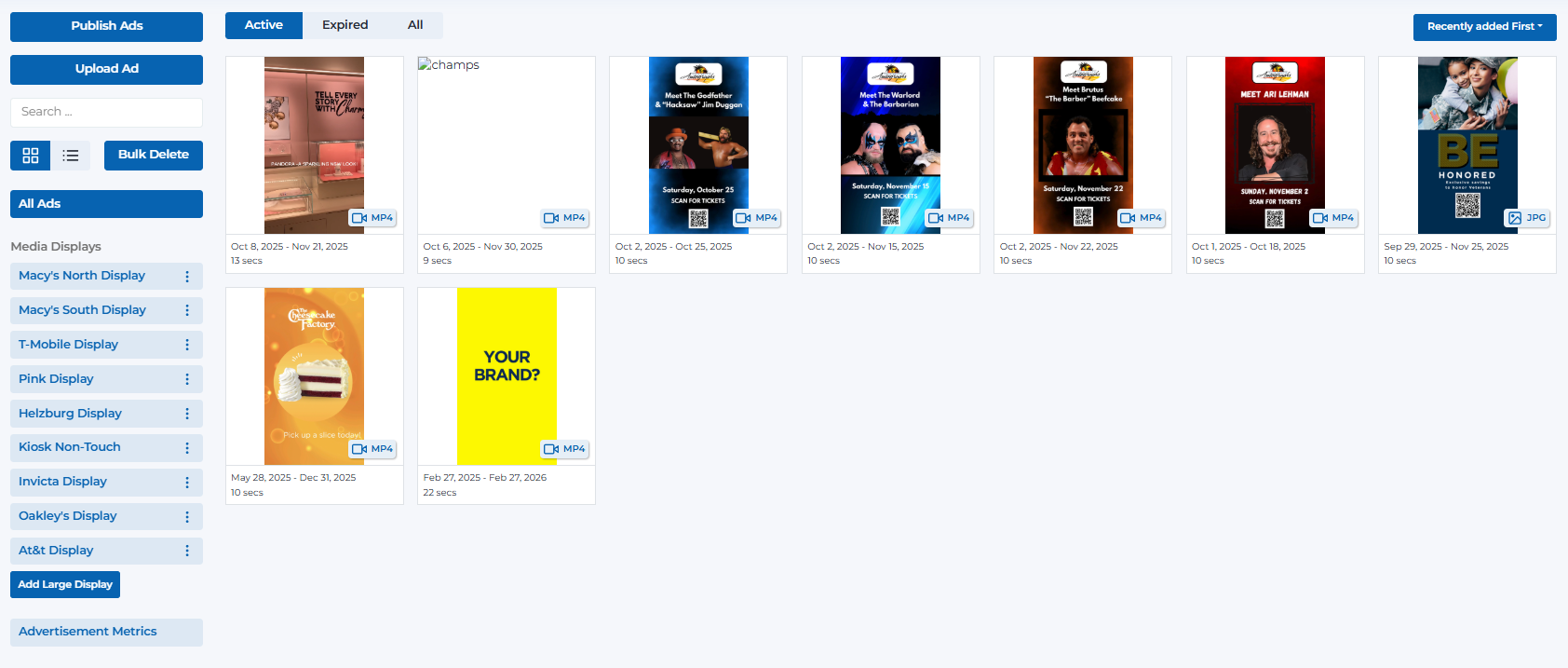
Display Ads showing a grid of ads
Key Features
Manage ads across touch kiosks, media walls, and all digital displays
Simple drag-and-drop interface for uploading video and image ads
Set start and end dates for precise ad campaign timing
Target specific displays or run ads across all screens
Drag-and-drop reordering of ads for optimal play sequences
Instant deployment of ads and changes to all displays
Display Ads Interface Overview
The Display Ads interface provides comprehensive tools for managing advertising content:
Deploy ads and changes to all displays
- • Pushes new ads to all associated displays
- • Updates play order changes across all screens
- • Refreshes the ad rotation on all displays
- • Required after uploading new ads or reordering
- • Available to all user types with appropriate permissions
Upload new advertising content
- • Opens upload modal for new ads
- • Supports video (MP4) and image (JPG, PNG) formats
- • Set start and end dates during upload
- • Choose target displays during upload
- • Progress tracking for large file uploads
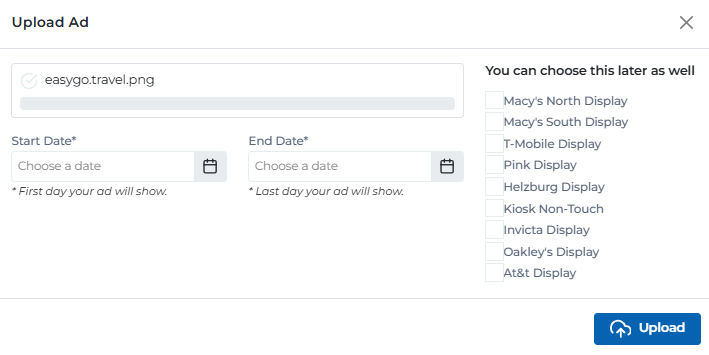
Upload ad modal
Find and organize ads efficiently
- • Search by ad title or content
- • Filter by Active, Expired, or All ads
- • Sort by recently added, date, or name
- • Grid and list view options
- • Bulk delete functionality for multiple ads
Manage displays and view display-specific ads
- • List of all available displays in the center
- • Touch kiosk displays and non-touch displays
- • Large media walls and digital signage
- • Click to view ads running on specific display
- • Add new large displays as needed
Visual management of advertising content
- • Thumbnail previews of all ads
- • Duration, date range, and file type information
- • Drag-and-drop reordering with + symbol
- • Click to edit individual ad settings
- • Visual indicators for active/expired status
Performance tracking and analytics
- • Center-wide visitor metrics
- • Display-specific performance data
- • Ad impression calculations
- • Visitor engagement statistics
- • Real-time performance monitoring
Display Types & Capabilities
The system supports various types of digital displays throughout your shopping center:
Interactive kiosk screens running the EyeOn Kiosk Application
- • Full interactive touch functionality
- • Runs the complete EyeOn Kiosk Application
- • Customer-facing interactive displays
- • Located in high-traffic areas
- • Supports both ads and interactive content
Rear displays on kiosks and other non-interactive screens
- • Non-interactive display screens
- • Located behind or around kiosks
- • Pure advertising display functionality
- • High visibility for promotional content
- • Continuous ad rotation display
Large format displays and video walls
- • High-impact large format displays
- • Multiple screen configurations
- • Premium advertising locations
- • High-resolution content support
- • Maximum visual impact for brands
Various other digital displays throughout the center
- • Flexible display configurations
- • Customizable screen sizes and orientations
- • Strategic placement throughout center
- • Adaptable to different content types
- • Integration with center infrastructure
User Permissions & Access Levels
All user types have access to display ads management with full functionality across all displays.
Display Ads Capabilities:
Can upload advertising content for their assigned center
Can edit ad settings, dates, and display targeting
Can delete ads through the ad edit modal
Can drag and drop to reorder ad play sequences
Can publish ads and changes to all displays
Can manage all displays within their center
Ad Management Features
Comprehensive tools for managing advertising content:
Simple and efficient ad upload workflow
- • Drag and drop file upload interface
- • Support for MP4 video and JPG/PNG image formats
- • Automatic file validation and optimization
- • Set start and end dates during upload
- • Select target displays during upload process
- • Progress tracking for large file uploads
Precise control over where ads are displayed
- • Select specific displays for each ad
- • Toggle individual display on/off for each ad
- • Run ads on all displays or targeted selection
- • Real-time display availability checking
- • Display-specific ad performance tracking
Drag-and-drop reordering of ad sequences
- • Click + symbol on ad thumbnails to enable dragging
- • Drag ads to new positions in play sequence
- • Top-left to bottom-right ordering pattern
- • Real-time preview of new play order
- • Save changes and publish to update displays
Precise control over ad timing and duration
- • Set start date for when ads begin showing
- • Set end date for when ads stop showing
- • Automatic activation and deactivation
- • Overlap handling for multiple ads
- • Date range validation and conflict checking
Comprehensive ad editing and management
- • Edit ad title, duration, and dates
- • Modify display targeting settings
- • Update ad content and files
- • View ad performance metrics
- • Delete ads through edit modal interface
Real-time deployment of ads and changes
- • Publish new ads to all displays instantly
- • Deploy play order changes across all screens
- • Refresh ad rotation on all displays
- • Confirm successful deployment to all displays
- • Rollback capability for failed deployments
Supported File Formats & Specifications
Display Ads supports various media formats with specific technical requirements for optimal display quality:
MP4
Primary video format for digital displays
MOV
Apple QuickTime video format
AVI
Windows video format
JPG/JPEG
Standard image format for photos
PNG
High-quality images with transparency
GIF
Animated images and simple graphics
Resolution Requirements
Specific resolution requirements based on display orientation:
Portrait Kiosk Displays
Vertical orientation for touch kiosk displays and portrait media walls
2160x3840 (4K Portrait)Landscape Displays
Horizontal orientation for large media walls and landscape displays
3840x2160 (4K Landscape)Best Practices
Content Creation
- • Create high-resolution content optimized for display screens
- • Use clear, readable fonts and high contrast colors
- • Keep text concise and easily readable from a distance
- • Test content on actual display screens before publishing
- • Consider different screen orientations and sizes
- • Use consistent branding across all ad content
File Optimization & Technical Requirements
- • Use 2160x3840 (4K Portrait) resolution for all portrait kiosk ads
- • Use 3840x2160 (4K Landscape) resolution for all landscape display ads
- • Keep all files under 25MB for optimal performance
- • Limit all videos to less than 30 seconds duration
- • Compress video files to reduce upload time and storage
- • Optimize images for web display without quality loss
- • Test playback performance on different displays
- • Use standard aspect ratios for better compatibility
Scheduling Strategy
- • Plan ad campaigns with appropriate start and end dates
- • Avoid overlapping conflicting ad content
- • Schedule seasonal content well in advance
- • Use date ranges that align with business objectives
- • Consider peak shopping times for maximum impact
- • Plan for content updates and refreshes
Display Targeting
- • Target specific displays based on audience and location
- • Use high-traffic displays for important announcements
- • Consider display visibility and viewing angles
- • Test ad performance across different display types
- • Rotate content between displays for variety
- • Monitor display-specific performance metrics
Play Order Management
- • Arrange ads in logical sequences for better flow
- • Balance promotional and informational content
- • Consider ad duration when planning play order
- • Test different play sequences for optimal engagement
- • Regularly review and update play order based on performance
- • Use the drag-and-drop interface for easy reordering
Publishing & Deployment
- • Always use the Publish Ads button after making changes
- • Verify successful deployment to all displays
- • Test ads on actual displays after publishing
- • Monitor for any deployment issues or errors
- • Keep backup copies of important ad content
- • Document successful ad campaigns for future reference
Ready to Manage Your Display Ads?
Access the Portal CMS to upload, schedule, and manage advertising content across all your digital displays.
Access Portal CMS