
Upload new advertising content for display across all digital screens in your shopping center
How to Upload Display Ads
The Upload Ad process allows you to add new advertising content to your display rotation. You can upload video files (MP4) or image files (JPG, PNG) and immediately configure when and where they should be displayed.
After uploading, you'll need to use the 'Publish Ads' button to deploy your new content to all displays. This ensures your ads are visible across all touch kiosks, media walls, and digital signage throughout your center.
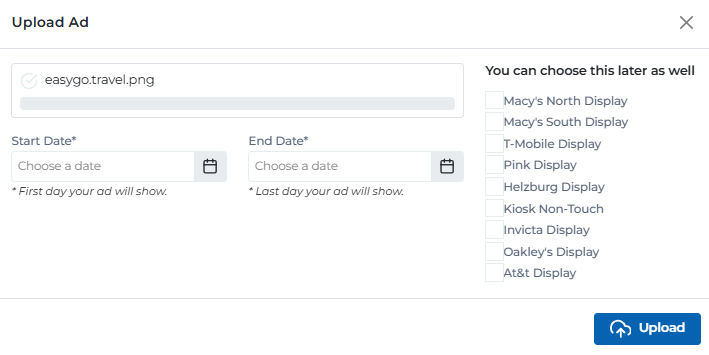
Upload ad modal
Upload Process Steps
Follow these steps to successfully upload and deploy new advertising content:
Click Upload Ad Button
From the Display Ads main page, click the blue 'Upload Ad' button to open the upload modal.
Select Your File
Choose your video (MP4) or image (JPG, PNG) file. The system will validate the file format and size automatically.
Set Start Date
Choose when your ad should begin displaying. This is the first day your ad will show on all selected displays.
Set End Date
Choose when your ad should stop displaying. This is the last day your ad will show on all selected displays.
Select Target Displays
Choose which displays should show your ad. You can select specific displays or choose to run on all available displays.
Upload and Confirm
Click the 'Upload' button to upload your file. The system will process and validate your content.
Publish to Displays
Return to the main Display Ads page and click 'Publish Ads' to deploy your new content to all selected displays.
File Requirements & Specifications
Ensure your advertising content meets these technical requirements for optimal display:
Resolution Guidelines
Choose the correct resolution based on your display type:
Portrait Kiosk Displays
Use this resolution for touch kiosk displays and portrait-oriented media walls
2160x3840 (4K Portrait)Landscape Displays
Use this resolution for large media walls and landscape-oriented displays
3840x2160 (4K Landscape)Display Selection Options
Choose which displays will show your advertising content:
Run your ad on all available displays in the center
- • Includes all touch kiosk displays
- • Includes all non-touch displays
- • Includes all large media walls
- • Maximum reach across the center
- • Best for center-wide announcements
Target specific displays for focused advertising
- • Select individual displays from the list
- • Target high-traffic areas
- • Customize by display type
- • Optimize for specific audiences
- • Better control over ad placement
Target by display category
- • Touch kiosk displays only
- • Non-touch displays only
- • Large media walls only
- • Mixed display combinations
- • Strategic placement options
User Permissions & Upload Access
All user types have full access to upload advertising content with appropriate center restrictions.
Upload Capabilities:
Can upload ads for their assigned center only
Can set start and end dates for ad campaigns
Can select displays within their center
System validates files automatically
Tips & Best Practices
Content Optimization & Technical Requirements
- • Use 2160x3840 (4K Portrait) resolution for all portrait kiosk ads
- • Use 3840x2160 (4K Landscape) resolution for all landscape display ads
- • Keep all files under 25MB for optimal performance
- • Limit all videos to less than 30 seconds duration
- • Test your content on actual display screens before uploading
- • Keep text large and readable from a distance
- • Use high contrast colors for better visibility
- • Consider different screen orientations and sizes
- • Optimize file sizes for faster upload and playback
Scheduling Best Practices
- • Set realistic start and end dates for your campaigns
- • Avoid overlapping conflicting ad content
- • Plan for seasonal content well in advance
- • Consider peak shopping times for maximum impact
- • Use date ranges that align with business objectives
- • Leave buffer time for content review and approval
Display Targeting Strategy
- • Target high-traffic displays for important announcements
- • Use specific displays for targeted audience messaging
- • Consider display visibility and viewing angles
- • Test different display combinations for optimal reach
- • Monitor display-specific performance after publishing
- • Rotate content between displays for variety
Upload Process Tips
- • Have your files ready and optimized before starting
- • Use descriptive file names for easy identification
- • Test file playback on your computer before uploading
- • Upload during off-peak hours for faster processing
- • Keep backup copies of important ad content
- • Verify successful upload before closing the modal
Ready to Upload Your Display Ads?
Access the Portal CMS to upload and manage advertising content across all your digital displays.
Access Portal CMS