
Manage events, activities, and special happenings at your shopping center
What is Events Management?
The Events Management module allows you to create, organize, and display events, activities, and special happenings at your shopping center. Events can include kids' activities, seasonal celebrations, entertainment, community gatherings, and retailer-sponsored events.
Events are displayed on kiosks, digital displays, mobile apps, and websites, helping shoppers discover activities and plan their visits around exciting happenings at the center.
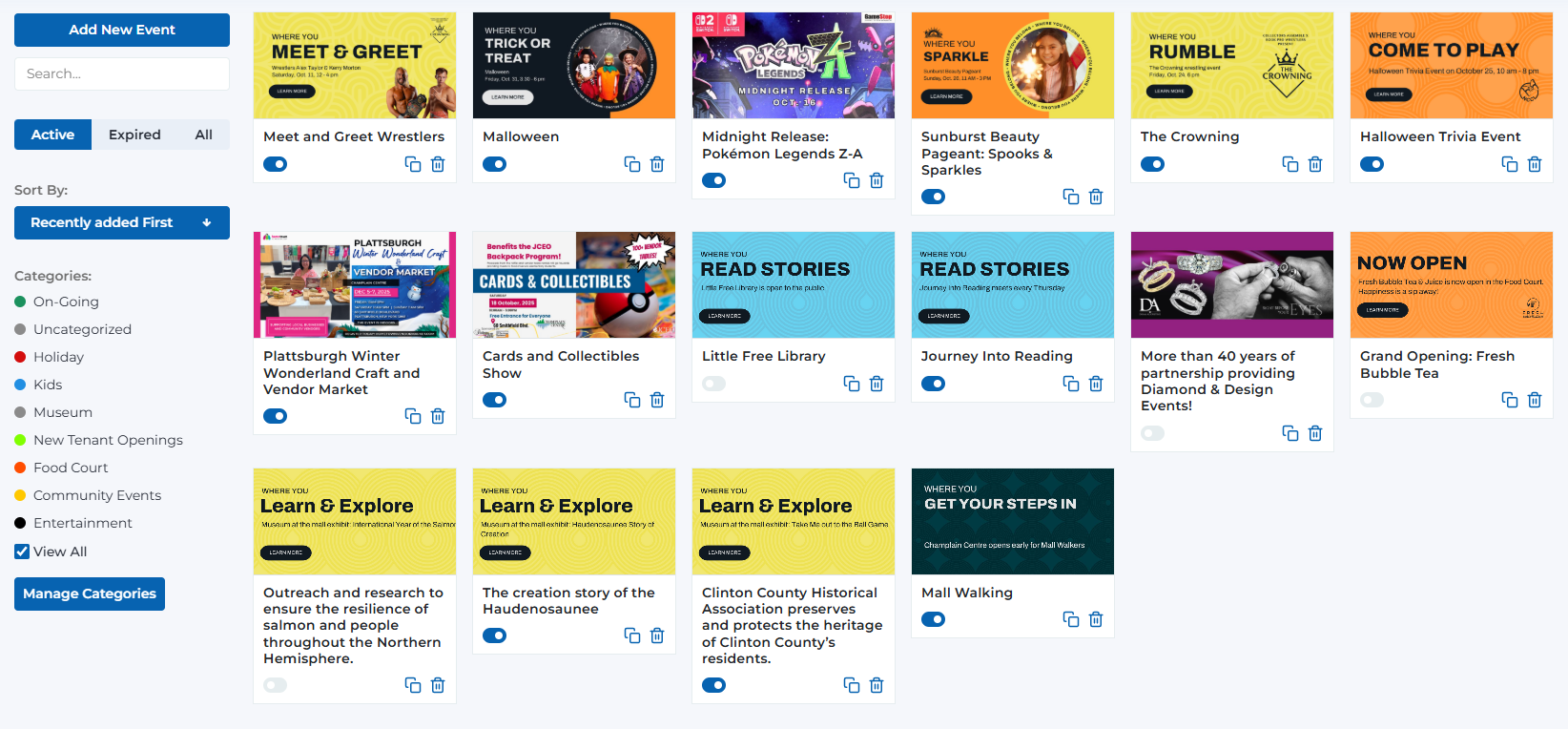
Events management page - Visual card layout with search, sort, and filter functionality
Key Features
Add events with images, descriptions, dates, times, and categories
Organize events by category for easy filtering and discovery
Set event dates, start times, end times, or mark as all-day events
Classify as one-day, multi-day, weekly, or recurring events
Manage events across multiple shopping centers (Company/System Managers)
Toggle events on/off and track active vs expired events
Events Page Overview
The Events page displays all events and activities for your shopping center in a visual card-based layout:
Create new events for your shopping center
- • Located at the top of the page
- • Opens the Add Event modal/form
- • Available to all user levels
- • Quick access to create events
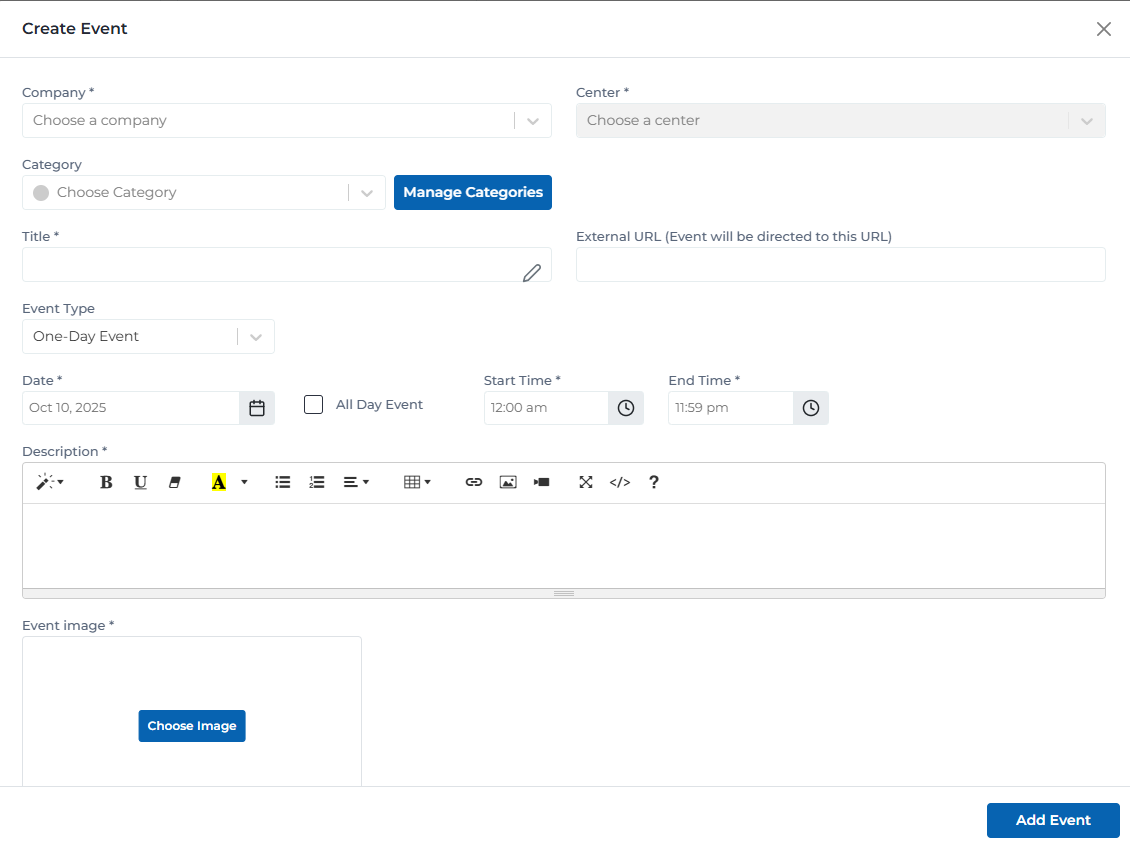
Add event form with all required fields and configuration options
Search through events by title or description
- • Real-time search as you type
- • Searches event titles and descriptions
- • Helps quickly locate specific events
- • Works across all event statuses
Organize and filter events by various criteria
- • 'Recently added First' sorting option
- • Active/Expired/All status tabs
- • Filter by event category
- • Dropdown category filter
Visual cards displaying event information
- • Event image or promotional graphic
- • Event title and description preview
- • Date and time clearly displayed
- • Toggle switch to activate/deactivate
- • Delete icon to remove event
- • Click card to edit event details
Visual cues for event status
- • Blue toggle = event is active
- • Gray toggle = event is inactive
- • Event dates shown on each card
- • Expired events automatically moved to Expired tab
Event Components
Each event card contains the following information and controls:
Visual promotional graphic for the event
- • Prominent placement at top of card
- • Recommended size: 800x400px minimum
- • Supports JPG, PNG formats
- • Should clearly represent the event
Clear, descriptive title of the event
- • Keep titles under 60 characters
- • Include key event details
- • Example: 'Kids Club Halloween Decorating Event'
- • Should be engaging and descriptive
Category classification for organization
- • Helps shoppers find relevant events
- • Enables filtering by category
- • Examples: Kids Activities, Entertainment, Seasonal
- • Manage categories via 'Manage Categories' button
When the event takes place
- • Display format: 'Oct 24, 2025 | 4:00 PM - 7:00 PM'
- • Support for all-day events
- • One-day or multi-day events
- • Clear start and end times
Classification of event duration
- • One-Day Event
- • Multi-Day Event
- • Weekly Event
- • Recurring Event
Control whether event is visible to shoppers
- • Blue toggle = active and visible
- • Gray toggle = inactive and hidden
- • Toggle on/off without deleting
- • Useful for temporarily hiding events
Remove event permanently
- • Red trash can icon
- • Confirmation required before deletion
- • Permanently removes event
- • Cannot be undone
Link to external event registration or details page
- • Optional field for event links
- • Redirects users when clicked
- • Useful for ticketed events
- • Can link to registration forms
Common Event Types
Kids Activities
Kids Club Halloween Decorating Event
Children's activities, crafts, and entertainment
Seasonal Celebrations
Holiday Tree Lighting Ceremony
Seasonal and holiday-themed events
Entertainment
Live Music Performance
Performances, concerts, and live entertainment
Community Events
Health & Wellness Fair
Community gatherings and educational events
Retailer Events
Store Grand Opening Celebration
Retailer-sponsored events and promotions
Fitness & Wellness
Morning Yoga in the Mall
Health, fitness, and wellness activities
Special Programs
Kids Zone Fire Safety Event
Educational programs and special activities
User Permissions & Capabilities
Different user types have varying levels of access to event management features based on their role and center assignments.
Event Management Capabilities:
Can create events for their assigned center only
Can edit events for their assigned center only
Can delete events for their assigned center only
Automatically posts to their assigned center - no selection needed
Cannot access or manage events from other centers
Typical Event Workflow
Plan Event Details
Coordinate event details including date, time, location, and activities
Create Event in Portal
Click 'Add Event' and enter all information including image, title, category, dates, and times
Set Event Category
Choose appropriate category or create new category for organization
Configure Date & Time
Set event type (one-day, multi-day, etc.) and specify start/end dates and times
Activate Event
Toggle event to active status to make it visible on kiosks and displays
Promote Event
Use event information in marketing materials and social media
Event Concludes
Event automatically expires after end date, or manually deactivate/delete when complete
Best Practices
Creating Effective Events
- • Use high-quality, engaging images that represent the event
- • Keep event titles clear and descriptive (under 60 characters)
- • Include all important details in the description (what, when, where)
- • Set accurate dates and times to avoid confusion
- • Choose appropriate categories for easy discovery
- • Test event visibility on kiosks after activation
Event Organization
- • Use consistent naming conventions for recurring events
- • Regularly review and remove past events
- • Use categories to organize different event types
- • Sort by 'Recently added First' to see newest events
- • Toggle off events instead of deleting if they might recur
- • Plan events well in advance for better promotion
Multi-Center Event Management
- • Company/System Managers: Always select appropriate center from top selector
- • Create events once and assign to multiple centers if applicable
- • Customize event details if activities vary by location
- • Monitor event dates across all centers
- • Communicate with center managers about new events
- • Verify each center has capacity for the planned event
Image Best Practices
- • Use high-resolution images (minimum 800x400px)
- • Ensure text in images is readable on kiosks and mobile
- • Match center's brand colors and style
- • Include event name and date in the image if possible
- • Keep file sizes under 2MB for faster loading
- • Use landscape orientation for best card display
Communication & Promotion
- • Promote events on social media and center website
- • Notify center staff about upcoming events
- • Update events promptly if details change
- • Remove or deactivate canceled events immediately
- • Track which events drive the most attendance
- • Follow up after events to gauge success
Ready to Manage Events?
Access the Portal CMS to create, edit, and manage events for your shopping center.
Access Portal CMS