
Manage your shopping center's retailer directory and tenant information
What is the Retailers Page?
The Retailers page allows you to manage all tenant and retailer information for your shopping center. You can add new retailers, organize them by categories, upload logos, and maintain a comprehensive directory that can be displayed on kiosks and digital signage.
The page features a visual grid layout with powerful sorting and filtering options, making it easy to find and manage retailers quickly. You can also export retailer data for reporting and external use.
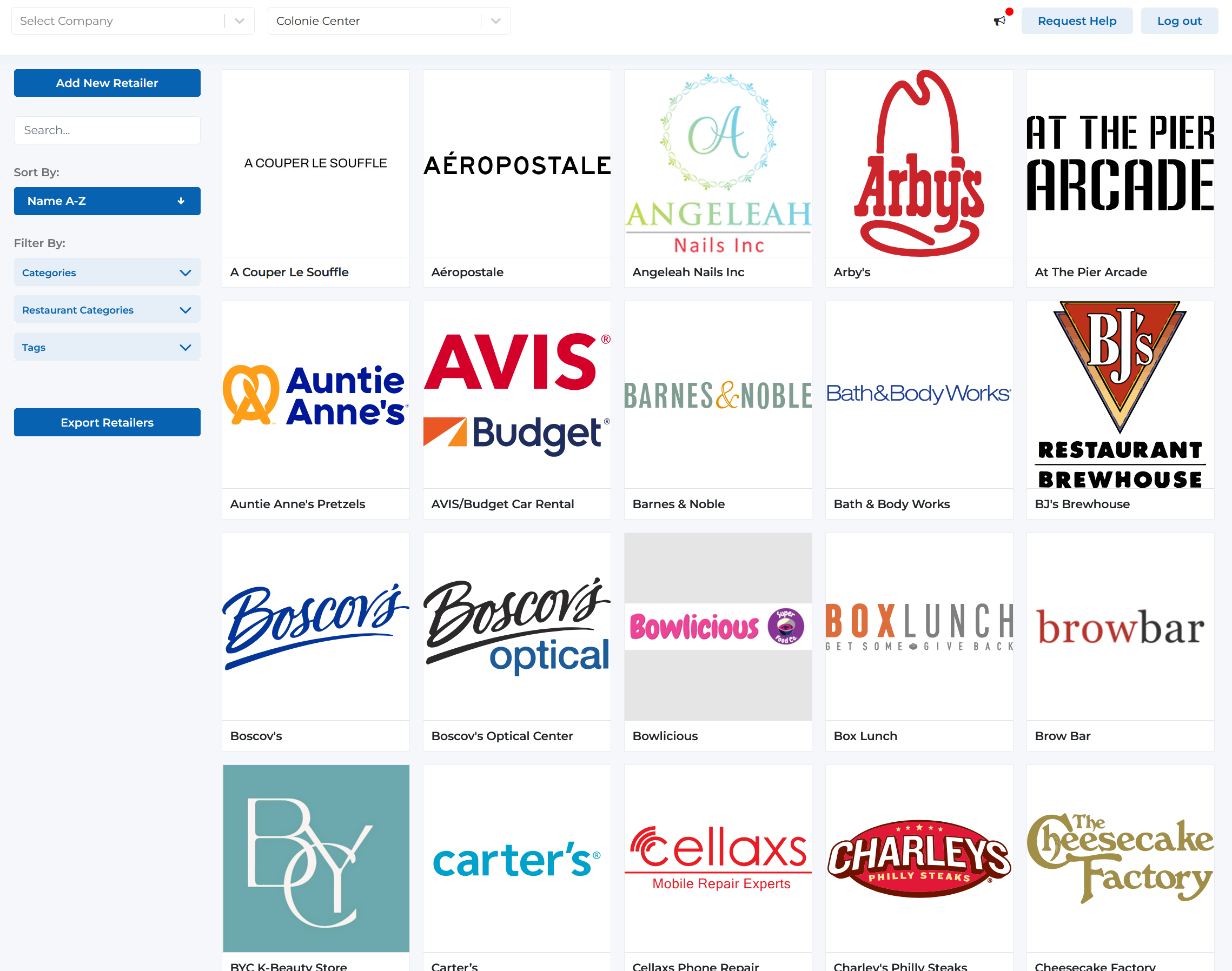
Retailers page - Visual grid layout with search, sort, and filter functionality
Key Features
Visual grid layout displaying retailer logos and names for easy browsing
Quickly add new retailers with logos, categories, and detailed information
Sort retailers by recently added, alphabetically (A-Z or Z-A)
Quickly find retailers using the search bar
Filter retailers by categories and restaurant categories
Organize and filter retailers using custom tags
Sorting Options
The Retailers page offers multiple sorting methods to organize your tenant directory:
Name A-Z
Sort retailers alphabetically from A to Z by name
Use Case:
Best for quickly finding retailers by name
Name Z-A
Sort retailers alphabetically from Z to A by name
Use Case:
Reverse alphabetical sorting
Recently Added First
Display newest retailers at the top of the grid
Use Case:
Perfect for reviewing newly added tenants
Recently Added Last
Display oldest retailers first, newest at the bottom
Use Case:
Useful for reviewing established tenants
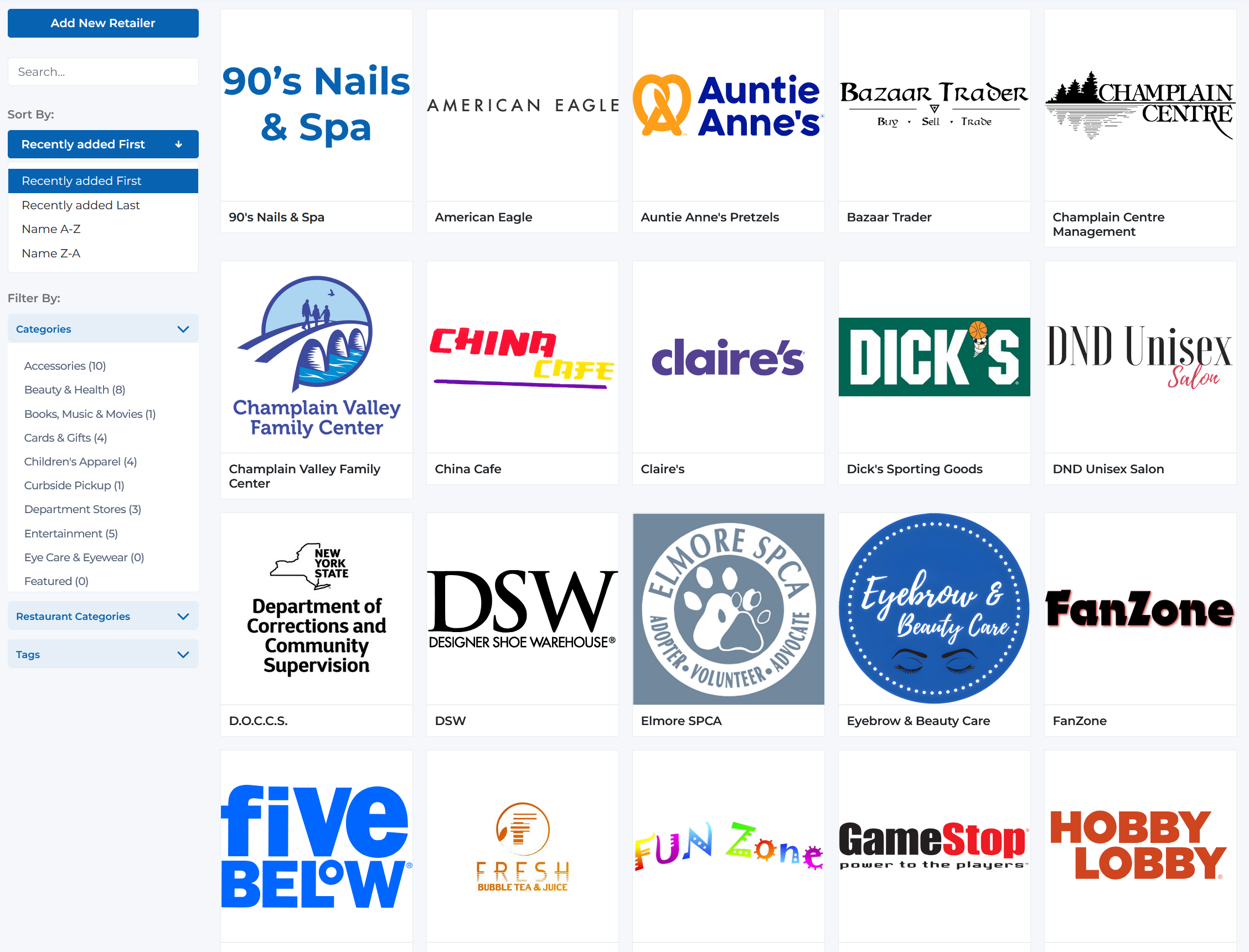
Sort options dropdown with multiple sorting methods
Filtering Options
Powerful filtering tools help you organize and find specific groups of retailers:
Filter by retail categories such as Fashion, Electronics, Home & Garden, Services, etc.
Examples:
- • Fashion & Apparel
- • Electronics & Technology
- • Home & Garden
- • Health & Beauty
- • Sports & Fitness
- • Services
- • Entertainment
Separate filtering for food and beverage establishments
Examples:
- • Fine Dining
- • Casual Dining
- • Fast Food
- • Cafés & Bakeries
- • Bars & Pubs
- • Food Court
- • Specialty Food
Custom tags for additional organization and filtering
Examples:
- • New Arrival
- • Seasonal
- • Featured
- • Sale
- • Kids Friendly
- • Pet Friendly
- • Local Business
Page Components
Understanding the retailer management interface components:
Add New Retailer
The 'Add New Retailer' button allows you to add new tenants to your directory:
- • Prominent blue button at the top of the page
- • Opens a form to enter retailer details
- • Upload retailer logo or image
- • Assign categories and tags
- • Enter contact information and location details
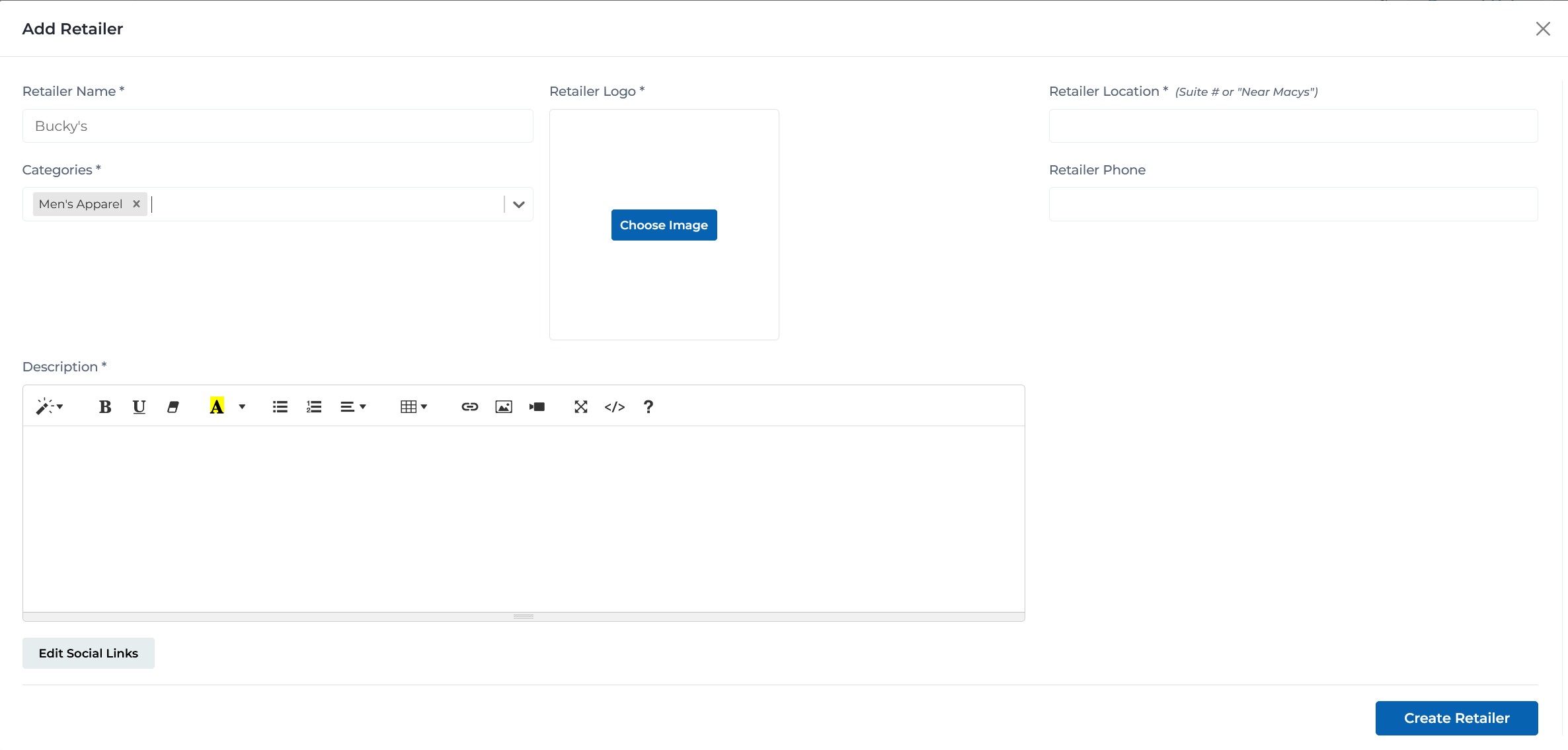
Add retailer form for general retail stores
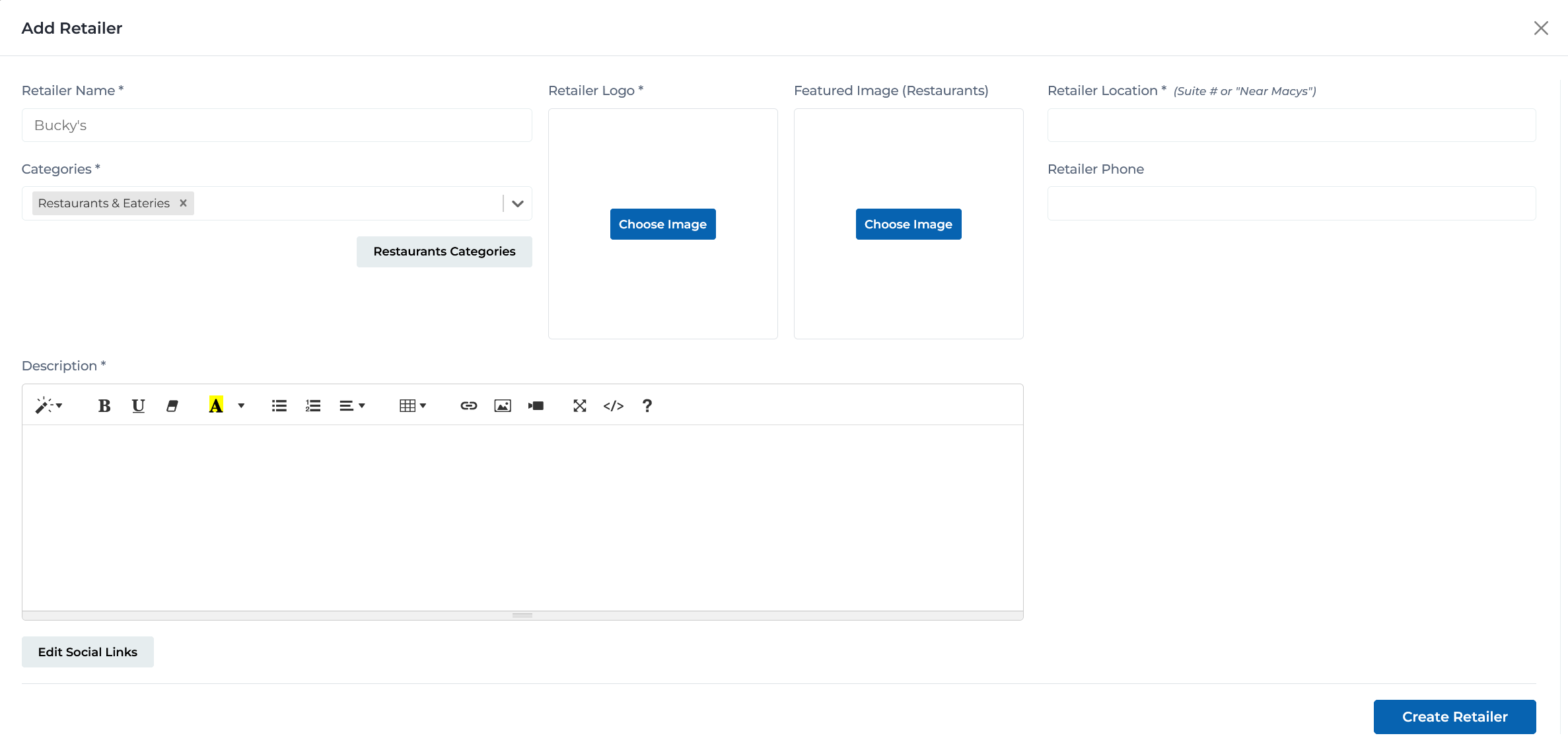
Add retailer form with restaurant-specific categories and fields
Search Bar
Quick search functionality to find retailers instantly:
- • Real-time search as you type
- • Searches by retailer name
- • Filters grid results immediately
- • Clear search to return to full view
Sort By Dropdown
Dropdown menu with multiple sorting options:
- • Name A-Z (default)
- • Name Z-A
- • Recently Added First
- • Recently Added Last
- • Updates grid view instantly upon selection
Filter Accordions
Collapsible filter sections for refined searching:
- • Categories accordion with all retail categories
- • Restaurant Categories accordion for dining options
- • Tags accordion for custom tag filtering
- • Multiple filters can be applied simultaneously
- • Clear filters option to reset view
Retailer Grid
Visual grid displaying all retailers:
- • Card-based layout with logo/image
- • Retailer name displayed below logo
- • Responsive grid adjusts to screen size
- • Click on retailer card to view/edit details
- • Hover effects for better user experience
Export Retailers
Export functionality for reporting and data management:
- • Export button below filter options
- • Downloads retailer data as spreadsheet
- • Includes all retailer information
- • Useful for reporting and external sharing
- • Respects current filters when exporting
Best Practices
Retailer Management
- • Keep retailer information up-to-date at all times
- • Upload high-quality, clear logos for each retailer
- • Use consistent image sizes for a professional appearance
- • Verify retailer details before publishing to kiosks
- • Remove closed or relocated retailers promptly
Categorization
- • Assign accurate categories to each retailer
- • Use restaurant categories specifically for dining establishments
- • Apply relevant tags for better filtering and discoverability
- • Review and update categories as retailers evolve
- • Maintain consistent categorization standards
Organization & Search
- • Use the search function for quick access to specific retailers
- • Apply filters when working with large tenant rosters
- • Sort by 'Recently Added' to review new entries
- • Regularly audit your retailer directory for accuracy
- • Export data periodically for backup and reporting
Ready to Manage Retailers?
Access the Portal CMS to start managing your shopping center's retailer directory.
Access Portal CMS