
Manage job postings and career opportunities for retailers at your shopping center
What is Careers Management?
The Careers Management module allows you to create, organize, and display job postings from retailers at your shopping center. Career postings help connect job seekers with employment opportunities, drive foot traffic, and support your retail partners' hiring needs.
Career postings are displayed on kiosks, digital displays, mobile apps, and websites, making it easy for potential applicants to discover job opportunities and apply directly to retailers.
Key Features
Add career opportunities with titles, descriptions, and application links
Link job postings to specific retailers
Set post and end dates for automatic posting activation and expiration
Filter careers by active, expired, or all postings with retailer filtering
Manage job postings across multiple shopping centers (Company/System Managers)
Toggle postings on/off and track active vs expired opportunities
Careers Page Overview
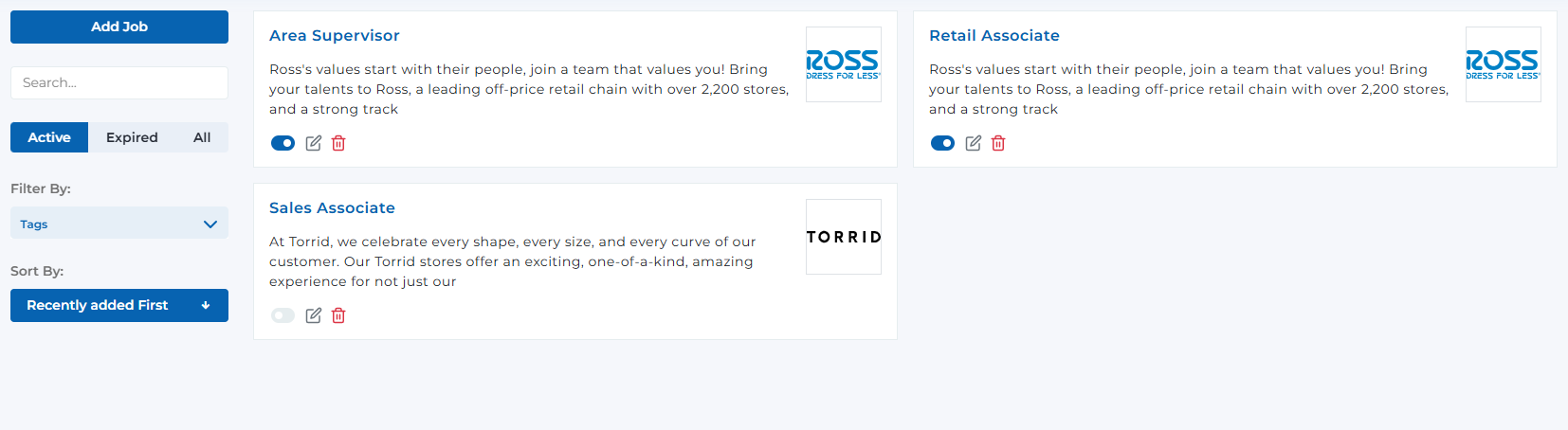
The Careers page displays all job postings for your shopping center in a visual card-based layout:
Create new job postings for retailers
- • Located at the top of the page
- • Opens the Add Job modal/form
- • Available to all user levels with center access
- • Quick access to create career opportunities
Search through job postings by title or retailer name
- • Real-time search as you type
- • Searches job titles and retailer names
- • Helps quickly locate specific postings
- • Works across all job statuses
Organize and filter jobs by various criteria
- • 'Recently added First' sorting option
- • Active/Expired/All status tabs
- • Filter by specific retailer
- • Dropdown retailer filter
- • Filter by company (for System Managers)
Visual cards displaying job information
- • Retailer logo displayed prominently
- • Job title and description preview
- • Post date and end date displayed
- • Toggle switch to activate/deactivate
- • Delete icon to remove posting
- • Click card to edit job details
Visual cues for job posting status
- • Blue toggle = job is active
- • Gray toggle = job is inactive
- • Post and end dates shown on each card
- • Expired jobs automatically moved to Expired tab
Job Posting Components
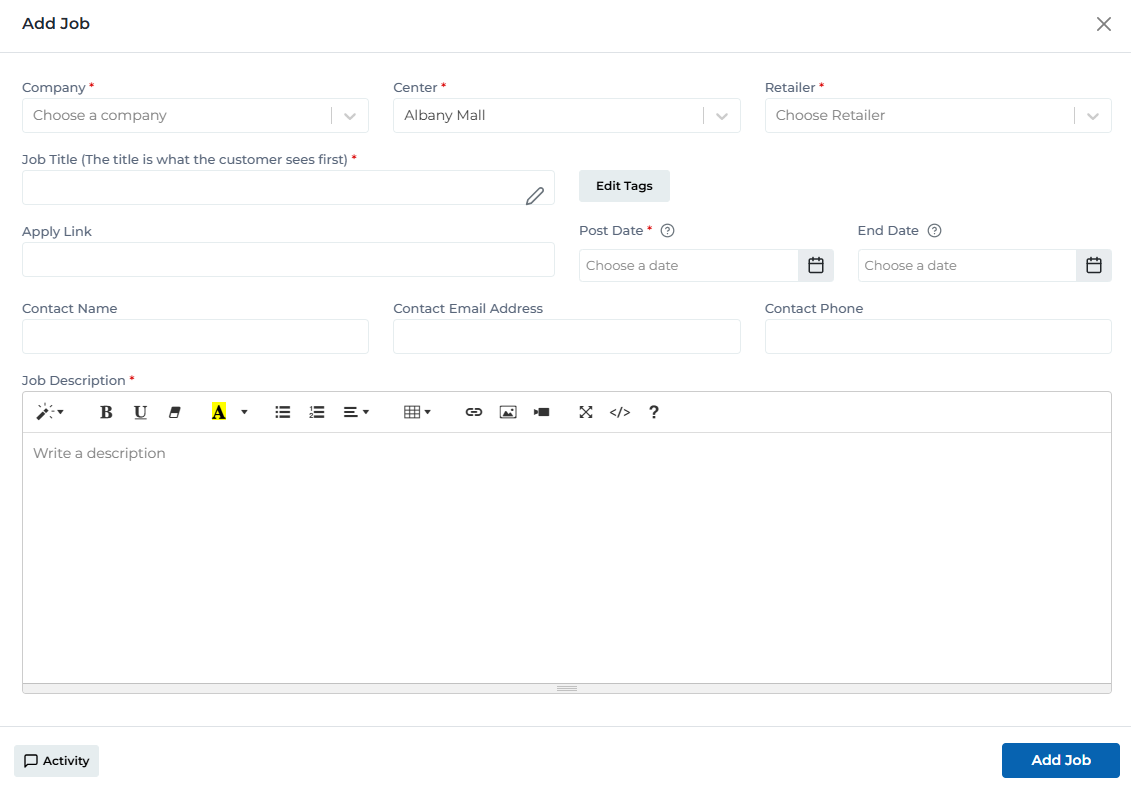
Each job posting card contains the following information and controls:
The company offering the position
- • Retailer logo displayed on card
- • Company name clearly visible
- • Links posting to specific retailer
- • Must be an active retailer at the center
Clear, descriptive title of the position
- • Keep titles professional and clear
- • Include employment type if relevant
- • Example: 'Regional Leasing Manager - Full Time'
- • Should match actual position title
Detailed information about the position
- • Responsibilities and requirements
- • Qualifications and experience needed
- • Compensation information (optional)
- • Benefits and perks
- • Rich text formatting supported
URL where applicants can apply
- • Direct link to application page
- • Can link to retailer's careers site
- • External application systems supported
- • Must include https://
When the job posting goes live
- • Required field
- • Determines when posting becomes visible
- • Can be set for future date
- • Format: Date picker selection
When the job posting expires
- • Optional but recommended
- • Posting automatically expires on this date
- • Can be extended if position remains open
- • Helps keep listings current
Hiring manager or recruiter contact details
- • Contact Name (optional)
- • Contact Email Address (optional)
- • Contact Phone (optional)
- • Useful for direct inquiries
Control whether job is visible to applicants
- • Blue toggle = active and visible
- • Gray toggle = inactive and hidden
- • Toggle on/off without deleting
- • Useful for temporarily pausing postings
Remove job posting permanently
- • Red trash can icon
- • Confirmation required before deletion
- • Permanently removes posting
- • Cannot be undone
Common Job Types
Full-Time Positions
Store Manager, Assistant Manager, Sales Lead
Permanent positions with full-time hours and benefits
Part-Time Positions
Sales Associate, Cashier, Stock Associate
Flexible positions with part-time hours
Seasonal Positions
Holiday Sales Associate, Seasonal Stock Help
Temporary positions during peak seasons
Management Roles
Regional Manager, District Manager, Leasing Manager
Leadership and management positions
Specialized Roles
Visual Merchandiser, Loss Prevention, IT Support
Positions requiring specific skills or certifications
User Permissions & Capabilities
Different user types have varying levels of access to career management features based on their role and center assignments.
Career Management Capabilities:
Can create job postings for their assigned center only
Can edit job postings for their assigned center only
Can delete job postings for their assigned center only
Automatically posts to their assigned center - no selection needed
Cannot access or manage job postings from other centers
Typical Career Posting Workflow
Retailer Provides Job Details
Coordinate with retailer to get position details, requirements, and application link
Create Job Posting in Portal
Click 'Add Job' and enter all required information including title, description, and dates
Set Post and End Dates
Configure when posting should go live and when it should expire
Activate Posting
Toggle posting to active status to make it visible on kiosks and displays
Monitor Applications
Coordinate with retailer on applicant flow and hiring progress
Update or Remove Posting
Edit posting if details change, or delete when position is filled
Best Practices
Creating Effective Job Postings
- • Use clear, professional job titles that match the actual position
- • Include comprehensive job descriptions with responsibilities
- • List required qualifications and preferred experience
- • Mention compensation range if retailer allows
- • Include benefits and perks to attract candidates
- • Verify all details with retailer before publishing
Job Posting Organization
- • Use consistent formatting across all postings
- • Regularly review and remove filled positions
- • Use the filter by retailer feature to manage specific stores
- • Sort by 'Recently added First' to see newest opportunities
- • Toggle off postings instead of deleting if they might reopen
- • Coordinate posting timing with retailer hiring schedules
Multi-Center Job Management
- • Company/System Managers: Always select appropriate center from top selector
- • Verify retailer exists at selected center before posting
- • Customize job details if requirements vary by location
- • Monitor post dates across all centers
- • Communicate with center managers about new postings
- • Track which centers have the most active postings
Application Link Best Practices
- • Verify application link works before publishing
- • Use direct links to application pages when possible
- • Ensure links include https:// protocol
- • Test links periodically to ensure they're still active
- • Use retailer's official careers page when available
- • Include contact information as backup if link fails
Communication & Coordination
- • Confirm job details with retailers before posting
- • Notify center staff when major employers are hiring
- • Update postings promptly if position details change
- • Remove or deactivate postings when position is filled
- • Track which postings generate the most interest
- • Follow up with retailers on hiring outcomes
Ready to Manage Career Postings?
Access the Portal CMS to create, edit, and manage job postings for your shopping center.
Access Portal CMS