
Learn how to create job postings and career opportunities for retailers at your shopping center
What is the Add Career Feature?
The Add Career feature allows you to quickly create job postings for retailers at your shopping center. Career postings help connect job seekers with employment opportunities, support retailer hiring needs, and drive engaged foot traffic to the center.
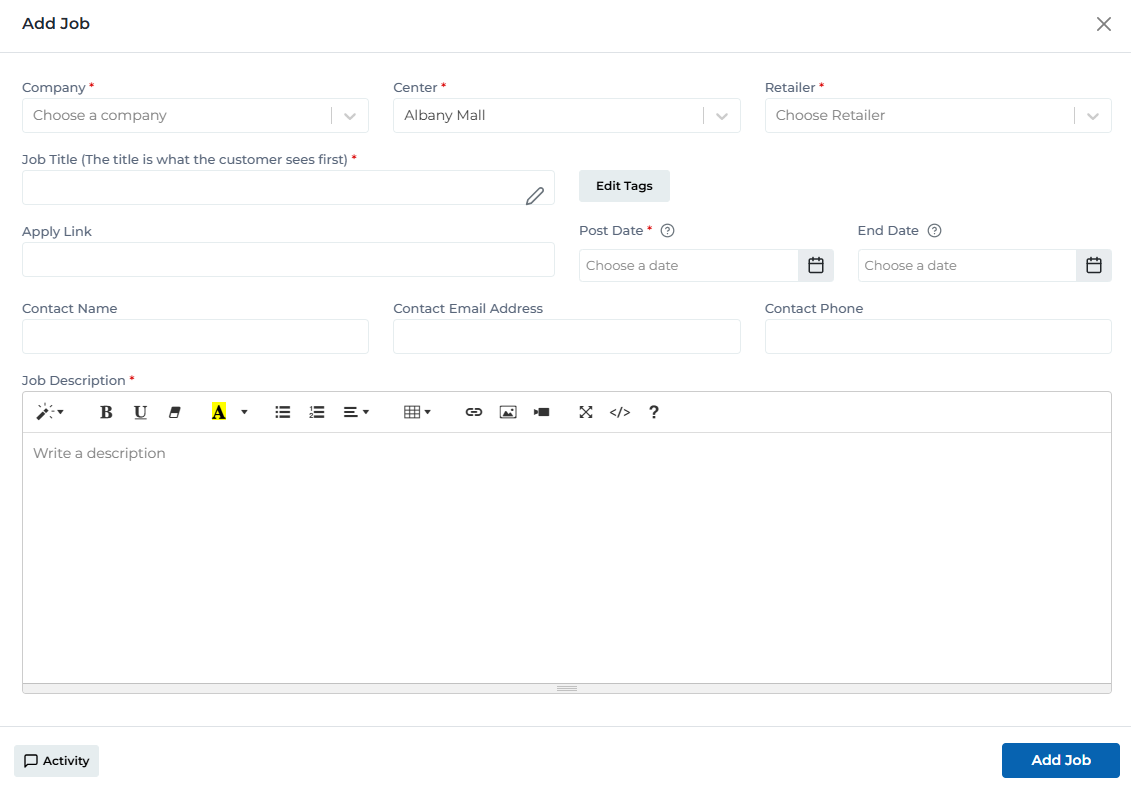
Creating effective job postings is simple with the Add Job form. Select the retailer, write a clear job title, add a comprehensive description, provide an application link, and set posting dates. Jobs automatically activate and expire based on your configured dates.
Key Features
Simple form to create career postings in minutes
Associate job postings with specific retailers
Direct applicants to retailer's application page
Set post and end dates for automatic activation
Add detailed job information with formatting
Include hiring manager or recruiter contact details
Adding a Job Posting: Step-by-Step Process
Follow these steps to create a new career posting:
Open Add Job Modal
Click the 'Add Job' button on the Careers page
→ A modal/form opens with fields for job information
Select Retailer
Choose which retailer is offering this position
- • Click 'Choose Retailer' dropdown
- • Search or browse for the retailer
- • Only active retailers at your center appear
- • Retailer logo will display on job card
- • Job will be linked to selected retailer
- • Verify retailer is actually hiring
Enter Job Title
Create a clear, professional title for the position
- • The title is what customers see first
- • Include employment type (Full-Time, Part-Time, etc.)
- • Keep titles professional and clear
- • Example: 'Sales Associate - Part Time'
- • Example: 'Regional Leasing Manager - Full Time'
- • Avoid vague or unclear titles
Add Application Link
Provide URL where applicants can apply
- • Direct link to application page
- • Can link to retailer's careers site
- • External application systems supported
- • Must include https://
- • Example: https://retailer.com/careers/apply
- • Test link to ensure it works
Set Post Date
Configure when the job posting should go live
- • Required field
- • Click calendar icon to select date
- • Determines when posting becomes visible
- • Can be set for future date
- • Posting activates automatically on this date
- • Coordinate with retailer's hiring timeline
Set End Date (Optional)
Configure when the posting should expire
- • Optional but recommended
- • Click calendar icon to select date
- • Posting expires automatically on this date
- • Can be extended if position remains open
- • Helps keep listings current and relevant
- • Set based on retailer's hiring needs
Add Contact Information (Optional)
Provide hiring manager or recruiter contact details
- • Contact Name: Hiring manager's name
- • Contact Email: Email for inquiries
- • Contact Phone: Phone number for questions
- • All contact fields are optional
- • Useful for candidates with questions
- • Alternative to or supplement for apply link
Write Job Description
Provide detailed information about the position
- • Include job responsibilities and duties
- • List required qualifications and experience
- • Mention preferred skills and certifications
- • Include compensation information if allowed
- • Note benefits, perks, and schedule
- • Use rich text editor for formatting
Save Job Posting
Click 'Add Job' button to create
→ Job posting is created and appears on the Careers page
Required Fields
The following fields must be completed to create a job posting:
Retailer
*The company offering the position
Example:
Victoria's Secret, JD Sports, Famous Footwear
Tips:
- • Select correct retailer from dropdown
- • Verify retailer is actually hiring
- • Confirm retailer is at your center
- • Coordinate with retailer before publishing
- • Retailer logo will display on job card
Job Title
*Clear, professional title of the position
Example:
Regional Leasing Manager - Full Time, Sales Associate - Part Time
Tips:
- • Include employment type in title
- • Keep titles professional and clear
- • Match actual position title
- • The title is what customers see first
- • Avoid vague or unclear titles
- • Be specific about the role
Post Date
*When the job posting goes live
Example:
Oct 24, 2025
Tips:
- • Set accurate posting date
- • Can be set for future activation
- • Posting becomes visible on this date
- • Coordinate with retailer's timeline
- • Consider time for applicants to see it
- • Update if hiring timeline changes
Job Description
*Detailed information about the position
Example:
Comprehensive description with responsibilities, qualifications, and benefits
Tips:
- • Include all job responsibilities
- • List required qualifications clearly
- • Mention compensation if allowed
- • Note benefits and perks
- • Use formatting for readability
- • Keep description thorough but concise
Optional Fields & Enhancements
Additional information to enhance job posting effectiveness:
URL where applicants can submit applications
- • Direct link to application page
- • Retailer's careers website
- • External application systems
- • Must include https://
- • Alternative: provide contact info instead
When the job posting should expire
- • Posting expires automatically on this date
- • Can be extended if needed
- • Helps keep listings current
- • Recommended for time-sensitive positions
- • Coordinate with retailer's needs
Hiring manager or recruiter name
- • Who to contact for questions
- • Hiring manager's full name
- • Adds personal touch to posting
- • Useful if apply link not available
- • Can be generic (e.g., 'Hiring Manager')
Email address for job inquiries
- • Where applicants can ask questions
- • Alternative to application link
- • Hiring manager's email
- • Department email (e.g., hr@retailer.com)
- • Ensure email is monitored
Phone number for inquiries
- • Direct line for questions
- • Store phone number
- • HR department number
- • Include area code
- • Verify number is correct
Best Practices
Creating Effective Job Postings
- • Always use clear, professional job titles
- • Include comprehensive job descriptions with all key details
- • Provide valid application links or contact information
- • Verify all details with retailer before publishing
- • Set realistic post and end dates
- • Test application links to ensure they work
Writing Job Descriptions
- • Start with a brief overview of the position
- • List key responsibilities clearly
- • Specify required qualifications and experience
- • Include preferred skills and certifications
- • Mention compensation range if retailer allows
- • Note benefits, schedule, and work environment
Job Title Best Practices
- • Include employment type (Full-Time, Part-Time, Seasonal)
- • Be specific about the role and level
- • Use industry-standard job titles when possible
- • Keep titles professional and clear
- • Avoid internal jargon or abbreviations
- • Match the title to what candidates search for
Setting Dates
- • Confirm posting timeline with retailer first
- • Set post date slightly before retailer needs to start hiring
- • Add end date to keep listings current
- • Consider time zones if relevant
- • Update dates if hiring timeline changes
- • Remove or deactivate when position is filled
Retailer Coordination
- • Get job details in writing from retailer
- • Confirm application process and link
- • Verify compensation and benefits information
- • Set expectations for posting activation timing
- • Follow up after posting goes live
- • Coordinate on when to remove filled positions
Ready to Add Career Postings?
Access the Portal CMS to start creating job postings for retailers at your shopping center.
Access Portal CMS