
Manage and update retailer information based on your access level and permissions
What is the Edit Retailer Feature?
The Edit Retailer feature allows you to modify retailer information, manage center assignments, and update local details for each location. The editing capabilities you have depend on your user access level - System Manager, Company Manager, or Center Manager.
Different permission levels provide different editing capabilities to maintain proper data governance while ensuring users can manage the retailers relevant to their scope of responsibility.
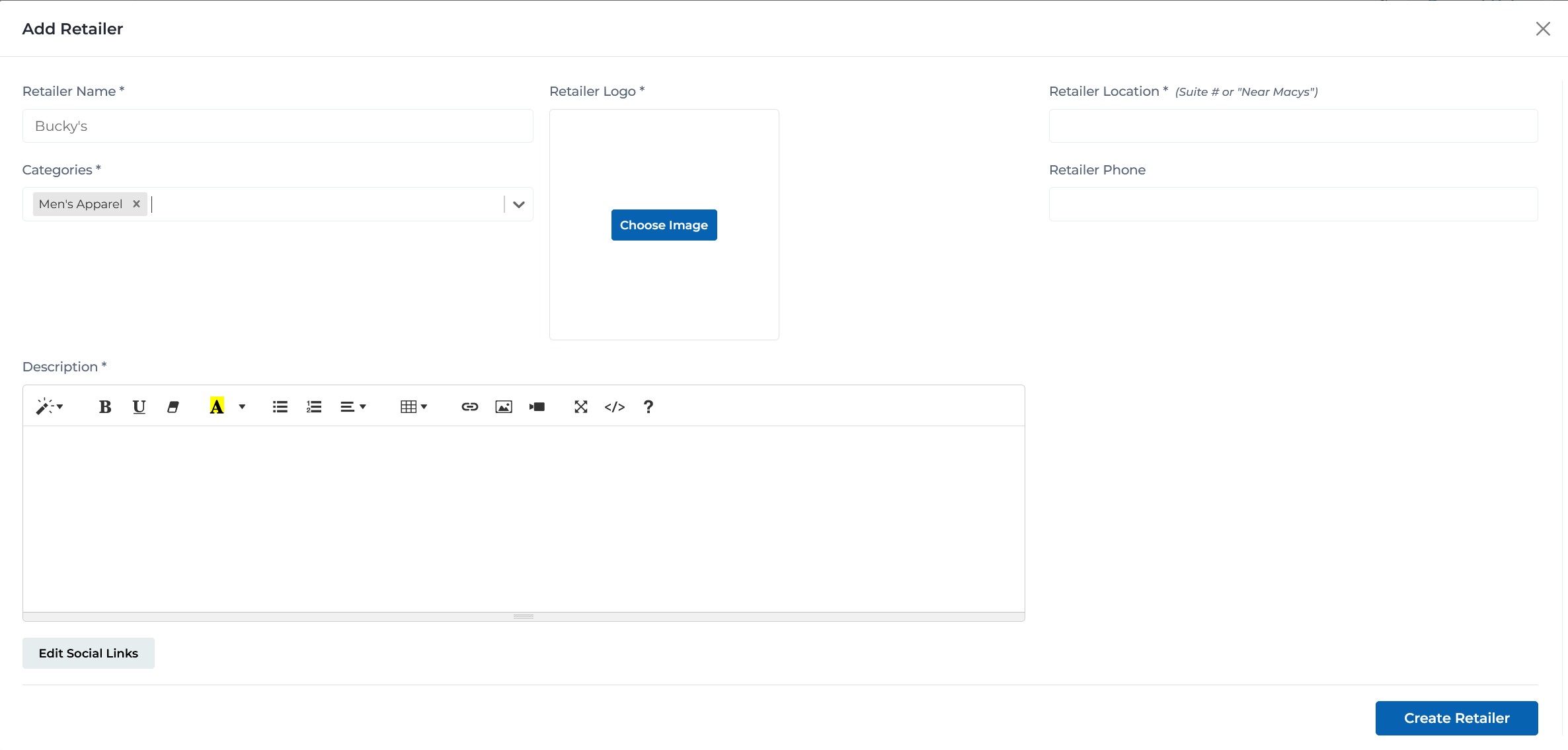
Edit retailer form for general retail stores
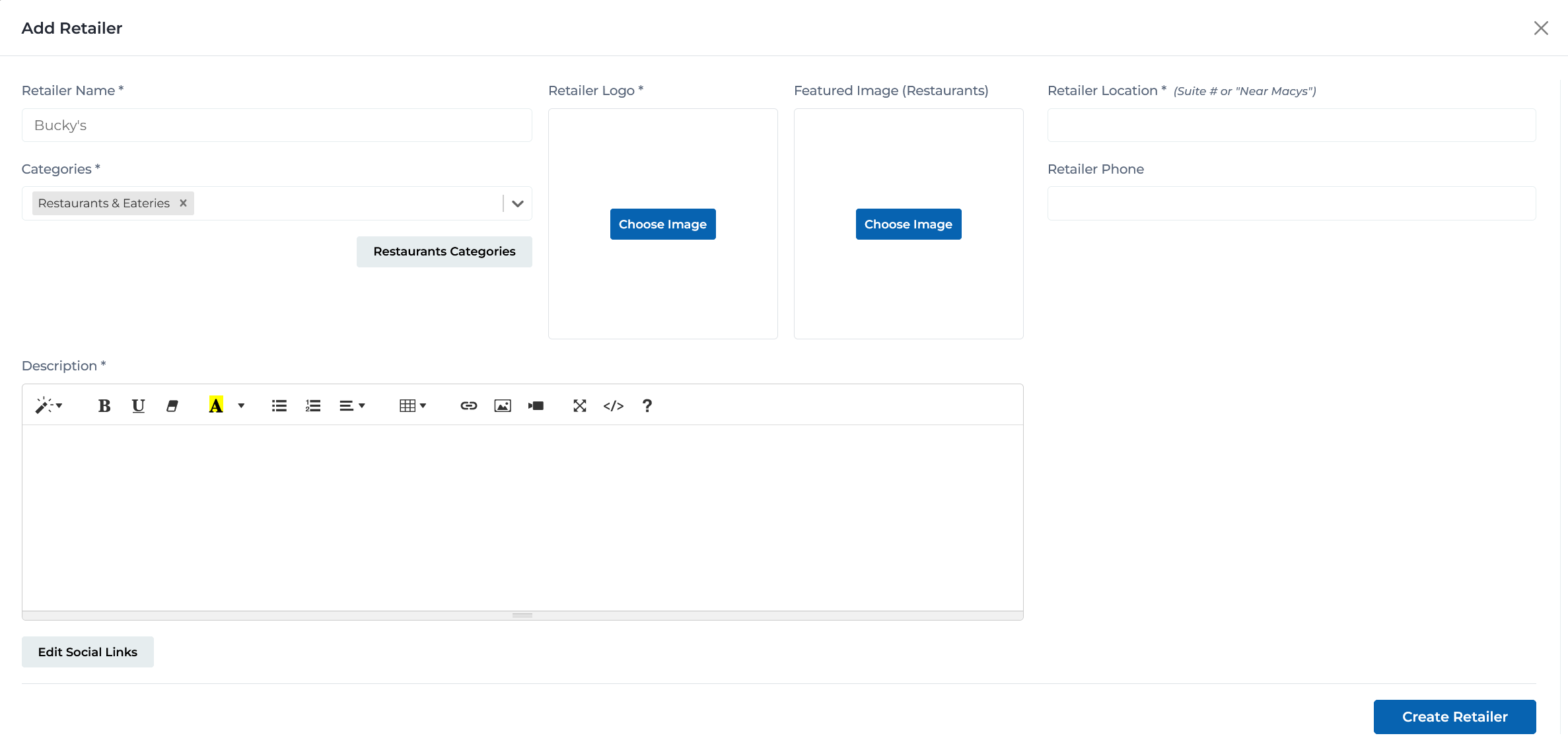
Edit retailer form with restaurant-specific categories and fields
Key Features
Edit retailer information based on your permission level
Assign or remove retailers from multiple centers (System/Company Managers)
Manage retailers with multiple locations within the same center
Update center-specific details like location, phone, and hours
Different editing capabilities based on your user role
Edit and save changes across multiple centers simultaneously
Permission Levels & Editing Capabilities
Your editing capabilities depend on your user access level within the Portal CMS:
Editing Capabilities:
View only - cannot edit retailer name
Name editing is restricted to System Managers
View only - cannot edit categories
Category editing is restricted to System Managers
View only - cannot upload or replace logos
Logo editing is restricted to System Managers
View only - cannot edit main retailer description
Global description editing is restricted to System Managers
View only - cannot edit global social media links
Global social links editing is restricted to System Managers
No access - cannot add or remove retailers from any centers
Center assignment is restricted to System and Company Managers
Not visible - cannot see retailer assignments to other centers
Center Managers only see their own center's location information
Full editing of location-specific details for their center only
Includes location, phone, tags, hours, and local descriptions
Can edit social links for locations at their center
Allows overriding global social links for their center's locations
Can edit operating hours for locations at their center
Useful when store hours differ from center hours
Add multiple locations for retailers with multiple spaces in their center
Can manage all locations of a retailer within their center only
Add additional locations for retailers within their center
Useful for retailers with multiple stores, kiosks, or departments in the same center
Remove specific locations from their center
Can only delete individual locations within their center
Add custom flags to locations at their center
Examples: Pet Friendly, Free WiFi, Wheelchair Accessible
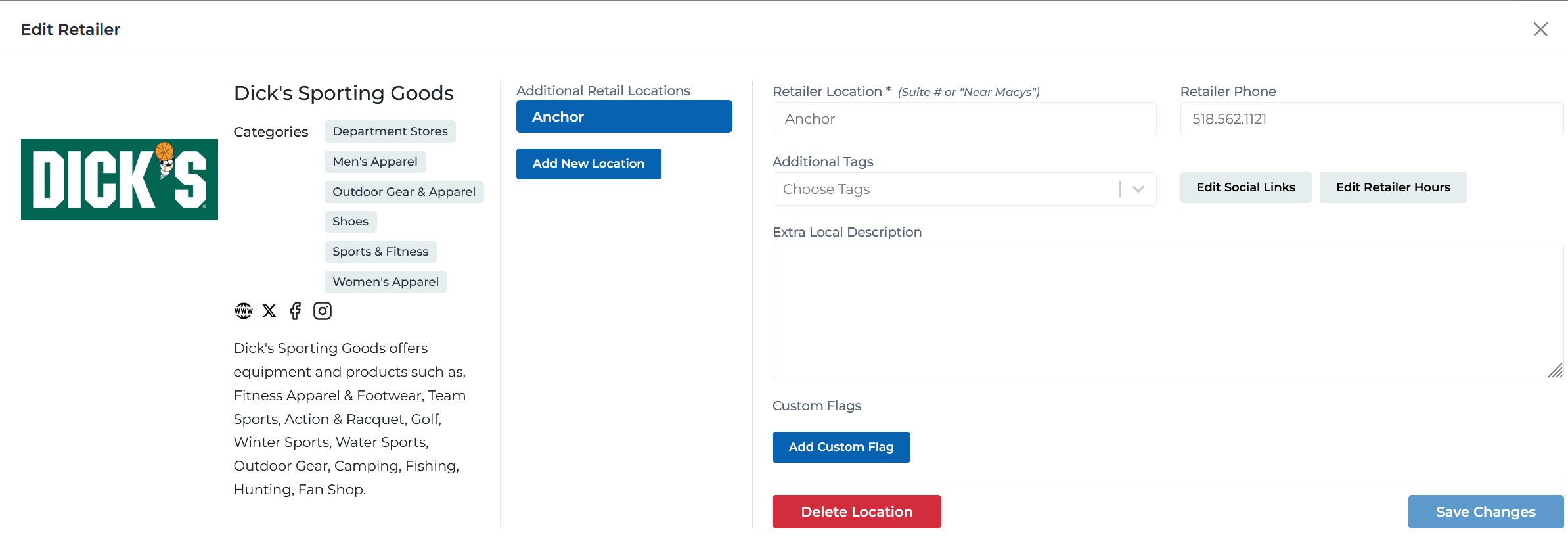
Center Manager edit retailer interface - showing available fields and capabilities
Center Manager Editing Scope
Center Managers have a simplified editing interface focused solely on their center's local information:
No Centers List
Center Managers do not see the centers list on the right side of the Edit Retailer modal
Impact:
They immediately see and can only edit local information for their own center
No Add Center Button
Cannot assign retailers to any centers
Impact:
Cannot add or remove the retailer from their center or any other centers
No Center Toggle
Cannot enable/disable retailers at centers
Impact:
Must contact Company or System Manager to add/remove retailers from their center
Local Information Only
Full access to edit all local fields for their center
Impact:
Can maintain accurate, up-to-date information for their specific location
Multiple Locations Within Center
Can add and manage multiple locations if retailer has multiple spaces in their center
Impact:
Useful for managing retailers with multiple stores, kiosks, or departments
Note: When a Center Manager clicks 'Edit Retailer', they see only the local information editing interface without any center assignment controls.
Best Practices for Center Managers
- • Keep all local information current and accurate for your center
- • Update retailer locations immediately if they move within your center
- • Set retailer-specific hours when they differ from center hours
- • Use tags and custom flags to highlight special features
- • Add meaningful local descriptions that help customers
- • Coordinate with Company/System Managers for global changes
- • Manage multiple locations for retailers with multiple spaces efficiently
- • Review and update phone numbers regularly
Center Assignment Management
System Managers and Company Managers
The center assignment feature allows you to control which centers display a particular retailer:
The right side of the Edit Retailer modal shows all available centers
- • Toggle switches to enable/disable retailer at each center
- • Blue toggle = retailer is active at that center
- • Gray toggle = retailer is not assigned to that center
- • Click center name to edit local information for that location
- • Trash icon to remove retailer from that center
- • List shows all centers within your access scope
Located at the bottom of the centers list
- • Click to assign retailer to additional centers
- • Opens a dropdown or modal to select centers
- • Can add multiple centers at once
- • New assignments require local information setup
Quick enable/disable without deleting local information
- • Blue toggle = retailer is visible and active at that center
- • Click toggle to temporarily disable without losing data
- • Useful for seasonal retailers or temporary closures
- • Local information is preserved when toggled off
Trash icon next to each center
- • Permanently removes retailer from that center
- • Deletes all local information for that location
- • Use with caution - removal deletes location-specific data
- • Consider using toggle instead for temporary removal
Editing Local Information
When you click on a center name in the centers list (System/Company Managers) or click Edit Retailer (Center Managers), a modal opens to edit location-specific information:
Left sidebar showing all locations for this retailer at the selected center
- • Lists all locations if retailer has multiple spaces
- • Click location to edit that specific location's details
- • Highlighted location shows which one you're currently editing
- • 'Add New Location' button to add additional spaces
- • Useful for retailers with multiple stores, kiosks, or departments in same center
Required field specifying where the retailer is located within the center
Example:
Suite # or 'Near Macy's', e.g., 'B10', 'Suite 205', 'Food Court Level 2'
Tips:
- • Use suite numbers when available
- • Include floor level for multi-story centers
- • Reference nearby landmarks for kiosks or carts
- • Be specific enough for wayfinding purposes
Local store phone number specific to this location
Example:
133.049.4002
Tips:
- • Use local store number, not corporate number
- • Include area code
- • Format consistently across all retailers
- • Update if phone number changes
Custom tags for filtering and organization
Example:
Featured, New Arrival, Local Business, Kids Friendly
Tips:
- • Use tags consistently across retailers
- • Apply location-specific tags
- • Tags can differ between locations of same retailer
- • Useful for seasonal or temporary attributes
Location-specific social media or website links
Tips:
- • Typically uses global social links
- • Override if location has specific social pages
- • Useful for franchises with local accounts
Operating hours specific to this location
Tips:
- • Set if hours differ from center hours
- • Update for seasonal hour changes
- • Include holiday hours
- • Can vary by location for same retailer
Additional description text specific to this location
Example:
Exclusive to this location, local manager info, special services offered here
Tips:
- • Highlight location-specific offerings
- • Mention local manager or staff
- • Note unique services at this location
- • Keep concise and relevant
Special attributes or features for this location
- • 'Add Custom Flag' button to create new flags
- • Examples: Pet Friendly, Wheelchair Accessible, Free WiFi
- • Can be location-specific
- • Useful for filtering and customer information
Action Buttons
Delete Location
Red button - Removes this specific location
⚠️ Permanently deletes this location's information. Only available if retailer has multiple locations at this center.
Save Changes
Blue button - Saves all changes to this location's information
Managing Multiple Locations
Some retailers occupy multiple spaces within the same shopping center. The Edit Retailer feature supports this scenario:
Common Use Cases
Multiple Store Locations
Example: Macy's with separate stores for Women's, Men's, and Home
Benefit: Each location can have different suite numbers and phone numbers
Store + Kiosk
Example: Main retail store plus a kiosk in the food court
Benefit: Different locations, hours, and descriptions for each
Multi-Department Stores
Example: Department store with separate entrances or wings
Benefit: Helps customers find the specific department they need
Seasonal Locations
Example: Permanent store plus holiday popup
Benefit: Can add/remove seasonal locations without affecting main store
How to Add Multiple Locations
- 1Open Edit Retailer for the retailer
- 2Click on the center where you want to add a location
- 3In the Additional Retail Locations sidebar, click 'Add New Location'
- 4Enter the new location's specific information (location, phone, etc.)
- 5Save changes
- 6Both locations now appear in the sidebar and can be edited independently
General Best Practices
Center Assignment Management
- • Verify retailer should actually be at a center before assigning
- • Complete local information immediately after adding center
- • Use toggles for seasonal or temporary retailers
- • Remove old center assignments promptly when retailers close
- • Check for duplicate assignments before adding centers
- • Coordinate with company/center managers on assignments
Local Information Accuracy
- • Update location information if retailers move within center
- • Keep phone numbers current and accurate
- • Set retailer-specific hours when they differ from center hours
- • Use tags consistently for better filtering
- • Add local descriptions that provide value to customers
- • Verify all information before saving changes
Need Help with Retailer Editing?
If you're experiencing issues editing retailers or need assistance with center assignments, contact our support team for help.
Contact Support