
Modify existing events and activities. All user types have the same editing capabilities for events.
Overview
The Edit Event interface allows all authorized users to update event information, images, categories, dates, times, and descriptions. Unlike other features, editing capabilities are the same for all user roles - System Managers, Company Managers, and Center Managers can all edit events in the same way within their assigned centers.
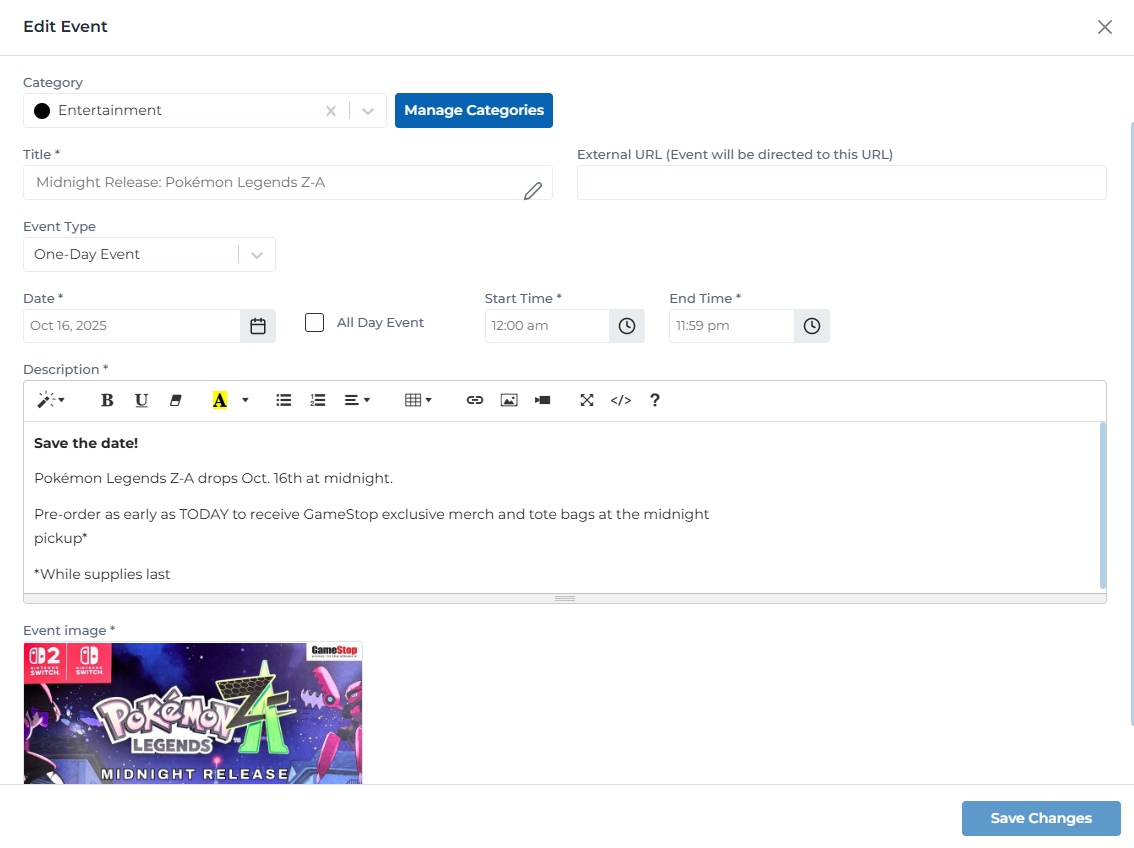
Edit event form with all fields and configuration options
Key Features
Update title, category, date, time, and event type
Upload new event images with automatic cropping (1200px/630px recommended)
All user types have the same editing capabilities
Events automatically delete after completion or expiration
Event Fields & Properties
Select or manage event categories
Note: Click 'Manage Categories' to create new categories
The event title attendees see first
Example:
Kids Club Halloween Decorating Event at Great American Cookies!
Link to registration or event details page
Example:
https://example.com/event-registration
Duration classification of the event
Options:
- • One-Day Event
- • Multi-Day Event
- • Weekly Event
- • Recurring Event
When the event takes place
Note: For multi-day events, set start and end dates
Check if event runs all day without specific times
When the event begins (if not all-day)
Example:
04:00 pm
When the event ends (if not all-day)
Example:
07:00 pm
Detailed event information with formatting
Note: Include activities, requirements, age restrictions, etc.
Visual graphic representing the event
Note: Recommended size: 800x400px minimum, under 2MB
How to Edit an Event
Navigate to Events Page
Go to Events in the Portal CMS
→ Company/System Managers: Select center from top selector first
Locate Event to Edit
Find the event using search or browsing
→ Use filters and search to quickly locate events
Click Event Card
Click anywhere on the event card to open edit modal
→ Edit modal displays with all current event information
Update Event Information
Modify any fields as needed
→ All fields except 'Event Image' can be updated directly
Change Category (Optional)
Select different category or create new one
→ Click 'Manage Categories' to add new categories
Update Dates & Times
Modify event date, start time, or end time
→ Check/uncheck 'All Day Event' as needed
Edit Description
Update event details using rich text editor
→ Use formatting tools for better readability
Update Image (Optional)
Upload new event image if needed
→ Previous image is replaced with new upload
Save Changes
Click 'Save Changes' button to update event
→ Changes appear immediately on all displays
User Permissions for Event Editing
All user types have the same editing capabilities for events. The only difference is which centers they can access:
Editing Capabilities:
Can edit all events at their assigned center
Can modify title, description, dates, times, images
Can change event categories and manage categories
Cannot edit events at other centers
Important Notes About Event Editing
- • All user types have the same editing capabilities for events
- • Company and System Managers must select a center from the top selector to view events
- • Changes are published immediately upon clicking 'Save Changes'
- • Events automatically delete after they are completed or expired
- • Editing an event does not change its creation date or original creator
- • Categories are shared across all centers in the system
- • External URLs must include 'https://' to work properly
Best Practices
Event Editing Best Practices
- • Always verify event details before saving changes
- • Update dates and times immediately if schedule changes
- • Notify center staff of significant event changes
- • Use rich text formatting for better readability
- • Include all important updates in the description
- • Test event display after making changes
Category Management
- • Use consistent category names across centers
- • Don't create duplicate categories
- • Keep category names short and clear
- • Organize events by logical groupings
- • Use 'Manage Categories' to add new types
- • Avoid creating too many categories
Image Updates
- • Upload new images when event details change significantly
- • Ensure new images match updated event information
- • Maintain consistent image quality (800x400px minimum)
- • Keep file sizes under 2MB for faster loading
- • Use landscape orientation for best display
- • Include event date in image if it changes
Date & Time Changes
- • Update immediately if event is rescheduled
- • Verify new date doesn't conflict with other events
- • Notify attendees through other channels about changes
- • Use 'All Day Event' checkbox appropriately
- • Ensure start time is before end time
- • Consider time zones if relevant
Need Help with Event Editing?
If you're experiencing issues editing events or need assistance with event management, contact our support team for help.
Contact Support