
Learn how to create events and activities for your shopping center
What is the Add Event Feature?
The Add Event feature allows you to quickly create events and activities for your shopping center. Events can include kids' activities, seasonal celebrations, entertainment, retailer events, community gatherings, and special programs that engage shoppers and drive foot traffic.
Creating effective events is simple with the Add Event form. Upload an engaging image, write a descriptive title, select a category, set dates and times, and add a detailed description. Events automatically activate based on your configured dates and appear on kiosks, digital displays, and mobile apps.
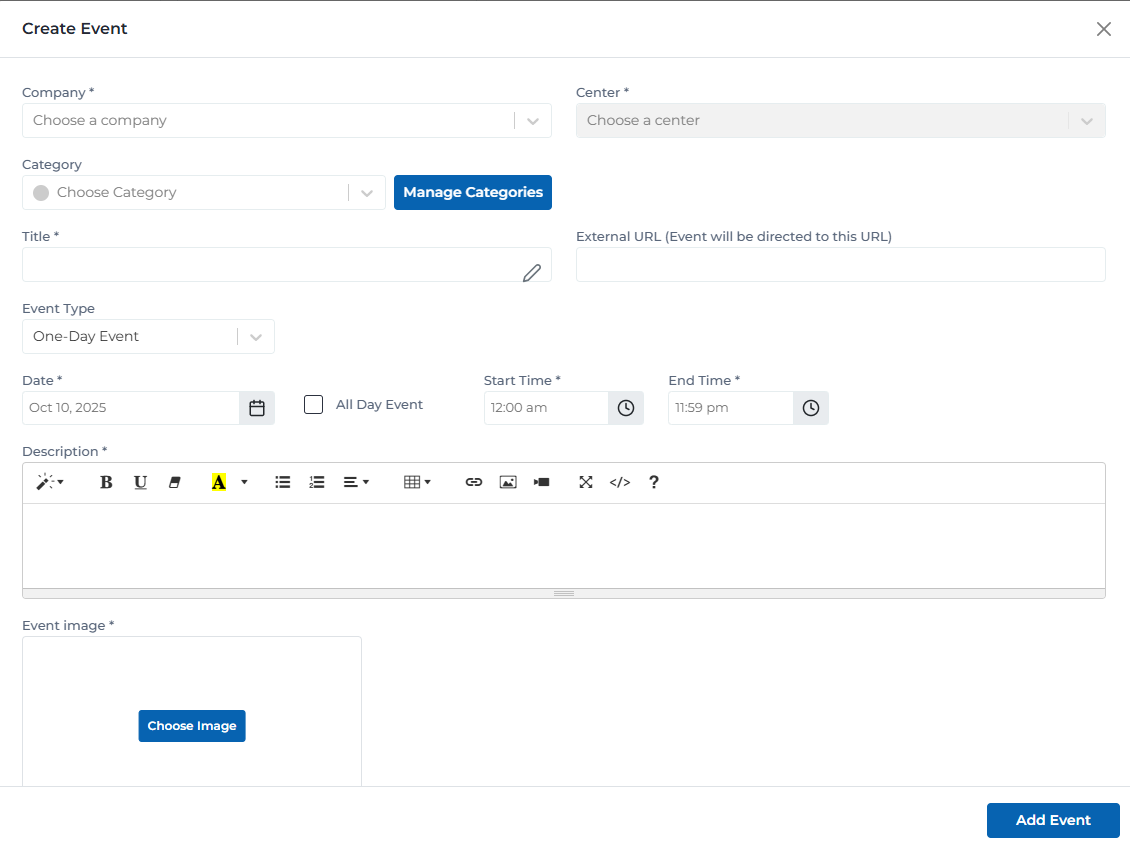
Add event form with all required fields and configuration options
Key Features
Simple form to create events in minutes
Add event graphics to make activities stand out
Organize events by category with custom category creation
Set event dates, start times, end times, or all-day events
Add detailed event information with formatting
Link to registration pages or event details
Adding an Event: Step-by-Step Process
Follow these steps to create a new event:
Open Add Event Modal
Click the 'Add New Event' button on the Events page
→ A modal/form opens with fields for event information
Select Event Category
Choose or create a category for the event
- • Click 'Choose Category' dropdown
- • Select from existing categories
- • Or click 'Manage Categories' to create new categories
- • Categories help organize and filter events
- • Examples: Kids Activities, Entertainment, Seasonal
- • Categories are shared across all centers
Enter Event Title
Create a clear, engaging title for the event
- • Keep titles under 60 characters
- • Include key event details
- • Example: 'Kids Club Halloween Decorating Event'
- • Should be descriptive and engaging
- • Avoid all caps unless necessary
Add External URL (Optional)
Link to registration or event details page
- • Optional field for external links
- • Useful for ticketed events
- • Can link to registration forms
- • Include full URL with https://
- • Event will redirect to this URL when clicked
Select Event Type
Choose the duration type of your event
- • One-Day Event: Single day activity
- • Multi-Day Event: Spans multiple days
- • Weekly Event: Recurring weekly
- • Recurring Event: Regularly scheduled
- • Determines how dates are configured
Set Event Date
Configure when the event takes place
- • Click calendar icon to select date
- • For multi-day events, set start and end dates
- • Date picker shows current month
- • Navigate between months easily
- • Ensure date aligns with event schedule
Configure Event Time
Set start and end times or mark as all-day
- • Uncheck 'All Day Event' to set specific times
- • Start Time: When event begins (e.g., 04:00 pm)
- • End Time: When event ends (e.g., 07:00 pm)
- • Use 12-hour format with AM/PM
- • Check 'All Day Event' for events without specific times
- • Times display prominently on event cards
Write Event Description
Provide detailed information about the event
- • Include what attendees can expect
- • Mention any requirements or restrictions
- • Note age restrictions if applicable
- • List activities or highlights
- • Include registration requirements if needed
- • Use rich text editor for formatting
Upload Event Image
Add a visual graphic for the event
- • Click 'Choose Image' button
- • Recommended size: 800x400px minimum
- • Supports JPG, PNG formats
- • Keep file size under 2MB
- • Image should clearly represent the event
- • Include event name and date in image if possible
Save Event
Click 'Add Event' button to create
→ Event is created and appears on the Events page
Required Fields
The following fields must be completed to create an event:
Event Title
*Clear, descriptive headline for the event
Example:
Kids Club Halloween Decorating Event at Great American Cookies!
Tips:
- • Keep under 60 characters
- • Include key event details
- • Make it engaging and descriptive
- • Mention location if specific to a retailer
- • Be clear about what the event is
Event Type
*Duration classification of the event
Example:
One-Day Event, Multi-Day Event, Weekly Event
Tips:
- • Select appropriate type for the event
- • One-Day for single-day activities
- • Multi-Day for events spanning days
- • Weekly for recurring weekly events
- • Determines date configuration options
Event Date
*When the event takes place
Example:
Oct 24, 2025
Tips:
- • Set accurate event date
- • For multi-day, set start and end dates
- • Verify date with event organizers
- • Consider buffer time for setup
- • Plan events in advance for promotion
Event Image
*Visual promotional graphic for the event
Example:
High-quality image showing the event activities
Tips:
- • Use high-resolution images (800x400px minimum)
- • Ensure image represents the event
- • Include event name in the image
- • Match center's branding
- • Use landscape orientation
Optional Fields & Enhancements
Additional information to enhance event visibility and engagement:
Organize events by type for easy filtering
- • Kids Activities
- • Entertainment
- • Seasonal Events
- • Community Events
- • Retailer Events
- • Fitness & Wellness
- • Create custom categories as needed
Link to registration or event details page
- • Event registration forms
- • Ticketing platforms
- • Retailer event pages
- • Community organization links
- • Social media event pages
Specific start and end times for the event
- • Start time (e.g., 04:00 pm)
- • End time (e.g., 07:00 pm)
- • Or mark as 'All Day Event'
- • 12-hour format with AM/PM
- • Clear duration for attendees
Detailed information about the event
- • Event activities and highlights
- • Age restrictions or requirements
- • Registration details
- • What to bring or expect
- • Any costs or fees involved
Best Practices
Creating Effective Events
- • Always use high-quality, engaging images
- • Make the event title clear and descriptive
- • Include all important details in the description
- • Set accurate dates and times to avoid confusion
- • Choose appropriate categories for organization
- • Test event visibility after creation
Image Guidelines
- • Minimum resolution: 800x400px
- • Maximum file size: 2MB
- • Use landscape orientation (16:9 or 2:1 ratio)
- • Ensure text is readable on small screens
- • Match center's brand colors and style
- • Include event name and date in image
Writing Event Titles
- • Keep titles under 60 characters for full visibility
- • Lead with the event name or activity
- • Include date or urgency if applicable ('This Saturday')
- • Be specific about what attendees will experience
- • Avoid excessive punctuation or all caps
- • Make it scannable and easy to read
Setting Dates & Times
- • Confirm event schedule with organizers first
- • Set dates well in advance for promotion
- • For multi-day events, specify start and end dates
- • Include buffer time for setup and cleanup
- • Use 'All Day Event' for events without specific times
- • Update immediately if schedule changes
Event Categories
- • Use consistent category names
- • Create categories that make sense for your center
- • Don't create too many categories (keep it simple)
- • Examples: Kids, Entertainment, Seasonal, Fitness
- • Categories help shoppers find relevant events
- • Manage categories via 'Manage Categories' button
Ready to Add Events?
Access the Portal CMS to start creating events and activities for your shopping center.
Access Portal CMS