
Modify existing advertising content, display targeting, and scheduling settings
How to Edit Display Ads
The Edit Ad interface allows you to modify existing advertising content, change display targeting, update scheduling, and manage ad settings. Unlike other modules, ads must be edited through the dedicated ad edit modal rather than a direct edit option from the main list.
The edit modal provides comprehensive controls for modifying ad content, display targeting toggles, and scheduling settings. All changes must be saved and then published using the 'Publish Ads' button to take effect on the displays.
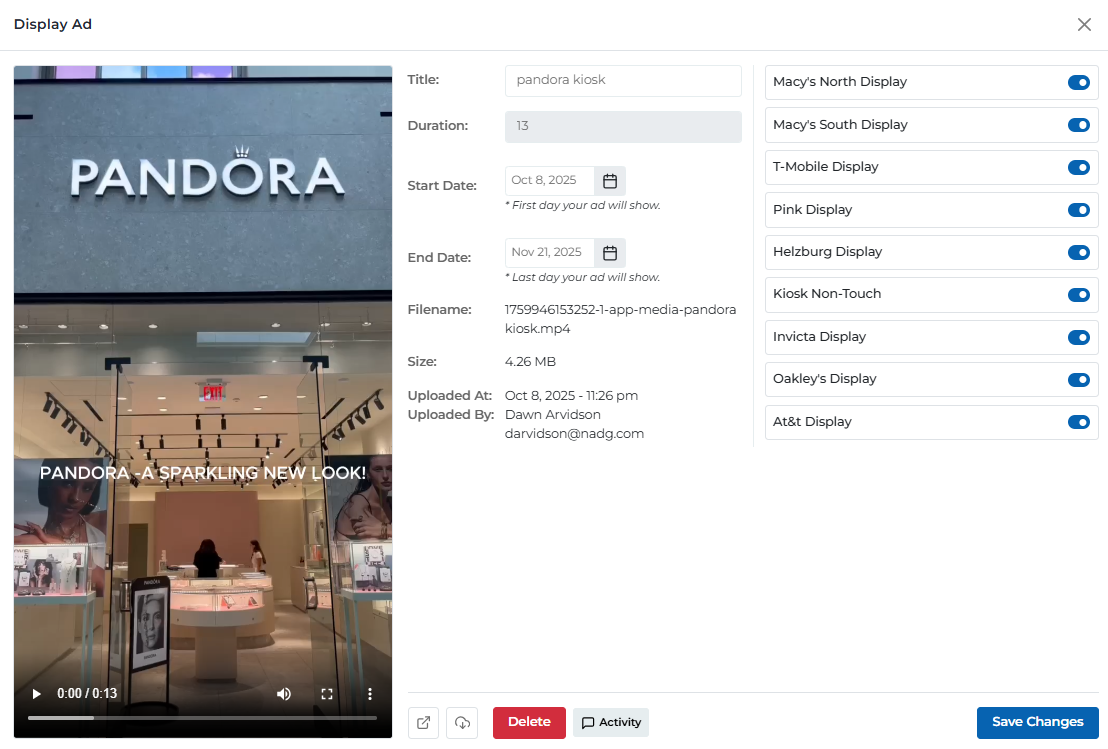
Edit ad modal
Ad Edit Interface Overview
The ad edit modal provides three main sections for managing your advertising content:
Visual preview and playback controls for the ad content
- • Full-size video player with playback controls
- • Ad title and branding information display
- • Event dates and call-to-action text
- • QR code display for ticket scanning
- • Video progress bar and duration display
- • Fullscreen and volume controls
Modify ad settings, dates, and file information
- • Edit ad title and description
- • Adjust ad duration in seconds
- • Modify start and end dates
- • View file information (name, size, upload date)
- • See uploader information and timestamps
- • Update ad metadata and settings
Control which displays show this ad
- • Toggle individual displays on/off
- • Select specific display combinations
- • View all available displays in the center
- • Real-time display selection updates
- • Save display targeting changes
- • Preview display assignments
Editing Features & Capabilities
Comprehensive editing tools for managing your advertising content:
Update ad content and settings
- • Change ad title and description
- • Adjust video duration settings
- • Update file information and metadata
- • Modify call-to-action text
- • Update branding and logo information
- • Change QR code settings
Modify ad timing and duration
- • Change start date for ad activation
- • Modify end date for ad deactivation
- • Adjust ad duration in seconds
- • Handle date conflicts and overlaps
- • Preview scheduling changes
- • Validate date ranges
Control where ads are displayed
- • Toggle individual displays on/off
- • Select specific display combinations
- • Target high-traffic displays
- • Exclude displays from ad rotation
- • Real-time targeting updates
- • Save targeting preferences
Manage ad files and assets
- • View current file information
- • See file size and upload details
- • Check uploader and timestamp data
- • Download original files
- • Share ad content with others
- • Manage file versions
Track ad performance and metrics
- • View ad impression data
- • Monitor display-specific performance
- • Track engagement metrics
- • Analyze ad effectiveness
- • Compare performance across displays
- • Generate performance reports
Manage ad actions and operations
- • Save changes to ad settings
- • Delete ads through edit interface
- • Share ad content with team
- • Download ad files for backup
- • Access SuperAdmin activity features
- • Close edit modal when done
Display Targeting Management
Control which displays show your advertising content:
Enable or disable ads on specific displays
- • Toggle each display on/off independently
- • Real-time updates to display assignments
- • Visual indicators for active/inactive displays
- • Save targeting changes immediately
- • Preview changes before publishing
- • Undo changes if needed
Target by display type or location
- • Touch kiosk displays
- • Non-touch displays
- • Large media walls
- • High-traffic areas
- • Specific center locations
- • Custom display groups
Apply targeting changes to multiple displays
- • Select all displays at once
- • Deselect all displays
- • Apply to display categories
- • Copy targeting from other ads
- • Reset to default targeting
- • Save targeting templates
User Permissions & Editing Access
All user types have full editing access with appropriate center restrictions.
Editing Capabilities:
Can edit ads for their assigned center only
Can change start/end dates and duration
Can modify display assignments within their center
Can delete ads through the edit modal
Can view ad performance metrics
Editing Tips & Best Practices
Content Updates & Technical Requirements
- • Use 2160x3840 (4K Portrait) resolution for all portrait kiosk ads
- • Use 3840x2160 (4K Landscape) resolution for all landscape display ads
- • Keep all files under 25MB for optimal performance
- • Limit all videos to less than 30 seconds duration
- • Test content changes on actual displays before publishing
- • Keep ad titles concise and descriptive
- • Ensure call-to-action text is clear and actionable
- • Verify QR codes are working and properly linked
- • Update branding information when needed
- • Maintain consistent messaging across all ads
Scheduling Management
- • Plan schedule changes in advance to avoid conflicts
- • Consider peak shopping times when setting dates
- • Leave buffer time between ad campaigns
- • Update end dates before ads expire unexpectedly
- • Coordinate with other marketing activities
- • Test date changes before finalizing
Display Targeting Strategy
- • Target high-traffic displays for important announcements
- • Use specific displays for targeted audience messaging
- • Test different display combinations for optimal reach
- • Monitor display-specific performance after changes
- • Rotate content between displays for variety
- • Consider display visibility and viewing angles
Performance Optimization
- • Regularly review ad performance metrics
- • Adjust targeting based on performance data
- • A/B test different display combinations
- • Monitor engagement rates across displays
- • Update underperforming ads or targeting
- • Document successful strategies for future use
Workflow Best Practices
- • Save changes frequently to avoid losing work
- • Preview changes before publishing to displays
- • Use the Publish Ads button after making changes
- • Test ads on actual displays after publishing
- • Keep backup copies of important ad content
- • Document changes for team reference
Ready to Edit Your Display Ads?
Access the Portal CMS to modify and manage your advertising content across all digital displays.
Access Portal CMS