
Create new external links with custom titles and URLs
What is the Add New Link Page?
The Add New Link page allows you to create new external links that will appear on your portal or kiosk displays. You can specify a custom title for the link and provide the target URL that users will navigate to when they click the link.
The form includes validation to ensure you provide both a title and a valid URL. Once added, the link will appear in your links list and can be reordered, edited, or deleted as needed. The link will use your configured background and text colors for consistent branding.
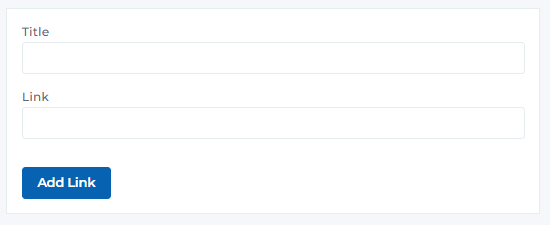
Add link modal
Key Features
Create new external links with custom titles and URLs
Specify a custom display title for your link
Provide the target URL that users will navigate to
Blue button to create and add the link to your list
Validation ensures both title and URL are provided
New links are immediately added to the links list
Add New Link Form Structure
The Add New Link form consists of two main input fields and a submit button:
Text input for the link's display title
- • Empty text input field labeled 'Title'
- • Used for the display name of the link
- • Should be descriptive and user-friendly
- • Appears in bold in the links list
- • Can include emojis for visual appeal
- • Required field for link creation
Examples:
- • NEW Company Page ✨
- • AMC Showtimes 🍿
- • Directory 😳
- • Events 🎉
- • Website 📊
Text input for the target URL
- • Empty text input field labeled 'Link'
- • Used for the target URL that users will navigate to
- • Should be a complete, valid URL
- • Include protocol (http:// or https://)
- • Appears below the title in the links list
- • Required field for link creation
Examples:
- • https://www.facebook.com/companypage/
- • https://www.amctheatres.com/movie-theatres/city/amc-theater-16
- • https://companycenter.com/stores/
- • https://companycenter.com/events/
- • https://companycenter.com/
Primary action button to create the link
- • Prominent blue button labeled 'Add Link'
- • Positioned below the input fields
- • Validates that both title and URL are provided
- • Creates the link and adds it to the list
- • Button is disabled if required fields are empty
- • Provides feedback on successful creation
Form Validation Rules
Understanding the validation requirements for creating new links:
*Title
Required
- • Must be filled before adding link
- • Cannot be empty or just whitespace
- • Should be descriptive and clear
- • Maximum length may apply
- • Can include emojis and special characters
*Link (URL)
Required
- • Must be filled before adding link
- • Must be a valid URL format
- • Should include protocol (http:// or https://)
- • Cannot be empty or just whitespace
- • Should be accessible and working
Page Components
Understanding the Add New Link interface components:
Title Input Field
Text input for link display title:
- • Empty text input field labeled 'Title'
- • Used for the display name users will see
- • Should be descriptive and user-friendly
- • Can include emojis for visual appeal
- • Required field for link creation
Link Input Field
Text input for target URL:
- • Empty text input field labeled 'Link'
- • Used for the target URL destination
- • Must be a complete, valid URL
- • Include protocol (http:// or https://)
- • Required field for link creation
Add Link Button
Primary action button for creating links:
- • Blue button labeled 'Add Link'
- • Positioned below input fields
- • Validates required fields before submission
- • Creates link and adds to list
- • Disabled until both fields are filled
Example Link Configurations
Here are examples of how you might configure different types of links:
NEW Company Page ✨
Social media link with emoji for visual appeal
AMC Showtimes 🍿
Movie theater showtimes with relevant emoji
Directory 😳
Store directory with fun emoji
Events 🎉
Events page with celebration emoji
Website 📊
Main website with chart emoji
Best Practices
Link Titles
- • Use descriptive titles that clearly indicate the link purpose
- • Include relevant emojis to make links more visually appealing
- • Keep titles concise but informative
- • Use consistent naming conventions
- • Avoid overly long titles that may be truncated
URL Management
- • Always use complete URLs with protocol (https://)
- • Test URLs to ensure they work correctly
- • Use short URLs when possible for better display
- • Avoid URLs with excessive parameters
- • Keep URLs up-to-date and accessible
Link Organization
- • Plan the order of links before adding them
- • Group related links together
- • Consider user needs and priorities
- • Limit the number of links to avoid overwhelming users
- • Regularly review and update link relevance
Content Strategy
- • Include essential links like website, directory, and events
- • Add social media links for engagement
- • Consider seasonal or promotional links
- • Ensure all links serve a clear purpose
- • Monitor link usage and effectiveness
Ready to Add New Links?
Access the Portal CMS to start creating and managing your external links.
Access Portal CMS