
Modify existing links by updating their titles and URLs
What is the Edit Link Page?
The Edit Link page allows you to modify existing external links in your portal or kiosk displays. You can update the link's display title, change the target URL, and save your changes to apply the updates immediately.
The form is pre-filled with the current link information, making it easy to see what needs to be changed. You can modify either the title or URL, or both, and the changes will be applied when you save. The link will continue to use your configured background and text colors for consistent branding.
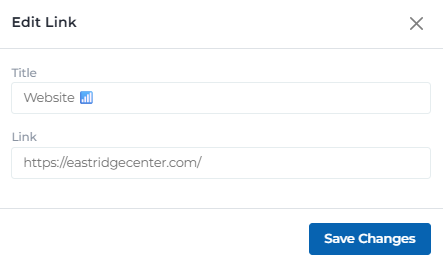
Edit link modal
Key Features
Update existing link titles and URLs with pre-filled forms
Current title is displayed and can be edited as needed
Current URL is displayed and can be updated as needed
Blue button to apply and save your link modifications
X icon to close the modal without saving changes
Changes are immediately applied to the links list
Edit Link Modal Structure
The Edit Link modal provides a clean interface for modifying existing links:
Modal title and close button
- • Modal header with 'Edit Link' title in bold
- • Close button (X icon) in top right corner
- • Clean, minimal header design
- • Close button allows canceling without saving
- • Modal overlays the main page content
Pre-filled text input for link title
- • Label 'Title' above the input field
- • Pre-filled with current link title
- • Example: 'NEW Company Page ✨'
- • Can be edited to change display name
- • Supports emojis and special characters
- • Required field for saving changes
Pre-filled text input for target URL
- • Label 'Link' above the input field
- • Pre-filled with current link URL
- • Example: 'https://www.facebook.com/companypage/'
- • Can be edited to change target destination
- • Should remain a valid URL format
- • Required field for saving changes
Primary action button to save modifications
- • Blue button labeled 'Save Changes'
- • Positioned at bottom right of modal
- • Validates that both title and URL are provided
- • Applies changes and closes modal
- • Button is disabled if required fields are empty
- • Provides feedback on successful save
Link Editing Workflow
Understanding the process of editing existing links:
Access Edit Modal
Click the blue pencil icon next to any link in the links list
- • Blue pencil icon in each link row
- • Opens Edit Link modal overlay
- • Modal appears centered on screen
- • Background content remains visible but dimmed
Review Current Information
Examine the pre-filled title and URL fields
- • Title field shows current display name
- • Link field shows current target URL
- • All current information is preserved
- • Changes can be made to either or both fields
Make Required Changes
Edit the title, URL, or both as needed
- • Modify title for better display name
- • Update URL for new target destination
- • Ensure both fields remain filled
- • Changes are validated before saving
Save Changes
Click 'Save Changes' to apply modifications
- • Blue button validates and saves changes
- • Modal closes automatically after save
- • Links list updates with new information
- • Changes are immediately visible
Page Components
Understanding the Edit Link modal interface components:
Close Button
X icon in modal header for canceling:
- • X icon in top right corner of modal
- • Allows closing without saving changes
- • Returns to main links page
- • No confirmation dialog required
- • Safe way to cancel editing
Title Input Field
Pre-filled text input for link title:
- • Label 'Title' above input field
- • Pre-filled with current link title
- • Can be edited to change display name
- • Supports emojis and special characters
- • Required field for saving changes
Link Input Field
Pre-filled text input for target URL:
- • Label 'Link' above input field
- • Pre-filled with current link URL
- • Can be edited to change target destination
- • Should remain a valid URL format
- • Required field for saving changes
Save Changes Button
Primary action button for saving modifications:
- • Blue button labeled 'Save Changes'
- • Positioned at bottom right of modal
- • Validates required fields before saving
- • Applies changes and closes modal
- • Provides feedback on successful save
Example Link Edits
Here are examples of common link modifications you might make:
Update Social Media Link
Updated to new page with emoji for visual appeal
Original:
Updated:
Fix Broken URL
Updated URL to working theater location
Original:
Updated:
Improve Title Clarity
Added emoji to make title more engaging
Original:
Updated:
Update Website URL
Updated to new domain name
Original:
Updated:
Best Practices
Link Editing
- • Always verify URLs work before saving changes
- • Test links on target devices if possible
- • Keep titles descriptive and user-friendly
- • Maintain consistent naming conventions
- • Document major changes for team reference
URL Management
- • Ensure URLs include proper protocol (https://)
- • Check for broken or redirected URLs
- • Update URLs when services change domains
- • Use short URLs when possible for better display
- • Avoid URLs with excessive parameters
Title Updates
- • Make titles more descriptive when needed
- • Add relevant emojis for visual appeal
- • Keep titles concise but informative
- • Use consistent emoji patterns across links
- • Avoid overly long titles that may be truncated
Change Management
- • Review changes before saving
- • Consider impact on user experience
- • Communicate major changes to team
- • Keep backup of important URLs
- • Monitor link performance after changes
Ready to Edit Links?
Access the Portal CMS to start editing and managing your external links.
Access Portal CMS