
Learn how to create promotional deals and special offers for your shopping center
What is the Add Deal Feature?
The Add Deal feature allows you to quickly create promotional offers for retailers at your shopping center. Deals can include discounts, special promotions, limited-time offers, and exclusive savings that help drive shopper engagement and foot traffic.
Creating effective deals is simple with the Add Deal form. Upload an eye-catching image, write a compelling title, set expiration dates, and link the deal to specific retailers. Deals automatically activate and expire based on your configured dates.
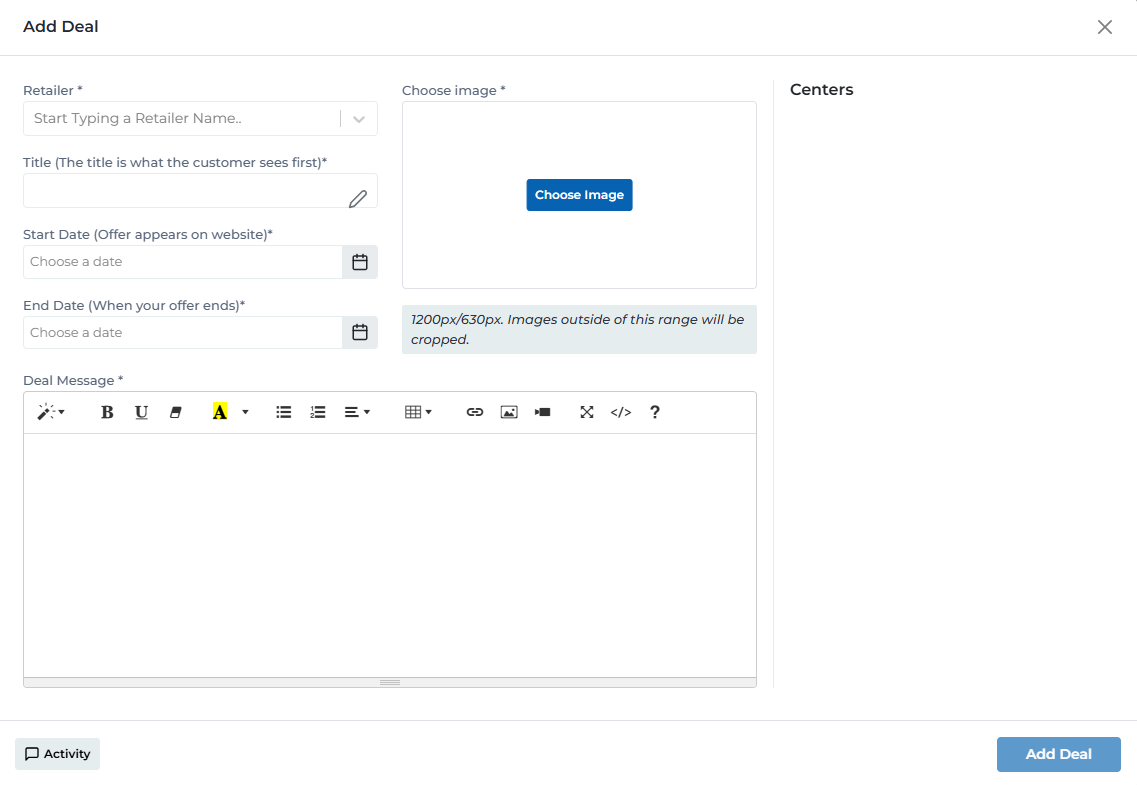
Add deal form with all required fields and configuration options
Key Features
Simple form to create deals in minutes
Add promotional graphics to make deals stand out
Associate deals with specific retailers
Set start and end dates for automatic activation
Add detailed deal information and restrictions
Mark deals as exclusive or premium offers
Adding a Deal: Step-by-Step Process
Follow these steps to create a new promotional deal:
Open Add Deal Modal
Click the 'Add Deal' button on the Deals page
→ A modal/form opens with fields for deal information
Upload Deal Image
Add a promotional graphic for the deal
- • Click 'Upload Image' or drag and drop
- • Recommended size: 800x400px minimum
- • Supports JPG, PNG formats
- • Keep file size under 2MB
- • Image should clearly communicate the offer
- • Include offer amount/percentage in the image
Enter Deal Title
Create a clear, concise title for the promotion
- • Keep titles under 60 characters
- • Include key offer details
- • Example: '25% Off All Jeans - This Weekend Only'
- • Should be eye-catching and descriptive
- • Avoid all caps unless necessary
Write Deal Description
Provide detailed information about the promotion
- • Include all important details and restrictions
- • Mention minimum purchase requirements
- • List excluded items if applicable
- • Note if coupon or code is required
- • Keep description clear and easy to read
- • Use rich text editor for formatting
Select Retailer
Choose which retailer is offering this deal
- • Dropdown list of retailers at your center
- • Search functionality to find retailer quickly
- • Deal will be linked to selected retailer
- • Shoppers can see retailer info with the deal
Set Start and End Dates
Configure when the deal should be active
- • Start Date: When deal becomes visible
- • End Date/Expiration: When deal automatically expires
- • Use date picker for easy selection
- • Deal activates and expires automatically
- • Can be edited later if needed
- • Set expiration date to match retailer's promotion end
Optional Settings
Configure additional deal options
- • Exclusive Access: Mark deal as 'EA' for premium offers
- • Active Status: Toggle deal active/inactive
- • Deal Category: Classify deal type if applicable
- • Terms & Conditions: Add fine print if needed
Save Deal
Click 'Save' or 'Create Deal' button
→ Deal is created and appears on the Deals page based on its start date
Required Fields
The following fields must be completed to create a deal:
Deal Image
*Visual promotional graphic representing the offer
Example:
High-quality image showing the product and discount amount
Tips:
- • Use high-resolution images (800x400px minimum)
- • Ensure text in image is readable
- • Match retailer's branding
- • Include offer clearly visible
- • Use landscape orientation
Deal Title
*Clear, concise headline describing the promotion
Example:
Midnight Release: Pokémon Legends Z-A
Tips:
- • Keep under 60 characters
- • Include key offer details
- • Use action words
- • Make it enticing
- • Be specific about the savings
Retailer
*The store offering this deal
Example:
GameStop, LEGO Store, Kay Jewelers
Tips:
- • Select correct retailer from dropdown
- • Verify retailer is participating
- • Confirm retailer is at your center
- • Coordinate with retailer before publishing
Expiration Date
*When the deal ends and expires
Example:
Oct 16, 2025
Tips:
- • Set accurate end date
- • Align with retailer's promotion schedule
- • Give shoppers enough time to use deal
- • Consider buffer time for stragglers
- • Update if promotion is extended
Optional Fields & Enhancements
Additional information to enhance deal visibility and clarity:
Detailed information about the offer, restrictions, and terms
- • Minimum purchase requirements
- • Excluded items or categories
- • Coupon code if required
- • Valid days/times
- • Terms and conditions
When the deal should become active and visible
- • Schedule deals in advance
- • Coordinate with retailer launch
- • Align with marketing campaigns
- • Useful for event-based promotions
Mark deal as exclusive or premium
- • 'EA' badge displays on card
- • Highlights special offers
- • Good for VIP or member-only deals
- • Draws attention to premium promotions
Classify deal type for organization
- • Percentage Off
- • Dollar Amount Off
- • BOGO
- • Free Gift
- • Event-Based
Best Practices
Creating Effective Deals
- • Always use high-quality, professional images
- • Make the offer amount prominent in title and image
- • Include all restrictions and requirements upfront
- • Verify all details with retailer before publishing
- • Test deal visibility after creation
- • Keep language clear and easy to understand
Image Guidelines
- • Minimum resolution: 800x400px
- • Maximum file size: 2MB
- • Use landscape orientation (16:9 or 2:1 ratio)
- • Ensure text is readable on small screens
- • Match retailer's brand colors and style
- • Avoid cluttered or busy images
Writing Deal Titles
- • Keep titles under 60 characters for full visibility
- • Lead with the offer (e.g., '25% Off' or 'Buy One Get One')
- • Include urgency if applicable ('This Weekend Only')
- • Be specific about what's on sale
- • Avoid excessive punctuation or all caps
- • Make it scannable and easy to read
Setting Dates
- • Confirm promotion dates with retailer first
- • Set start date slightly before retailer's launch
- • Add buffer time to end date if possible
- • Consider time zones for multi-location deals
- • Update dates if retailer extends promotion
- • Remove or deactivate if retailer ends early
Retailer Coordination
- • Get deal details in writing from retailer
- • Request promotional images from retailer
- • Confirm offer restrictions and exclusions
- • Verify deal is approved by retailer's management
- • Set expectations for deal activation timing
- • Follow up after deal goes live
Ready to Add Deals?
Access the Portal CMS to start creating promotional deals for your shopping center.
Access Portal CMS