
Modify existing promotional deals and special offers with permission-based editing capabilities.
Overview
The Edit Deal interface allows authorized users to update deal information, images, dates, and center assignments. Editing capabilities vary based on user role, with System Managers and Company Managers having access to multi-center assignments, while Center Managers can only edit deals within their assigned centers.
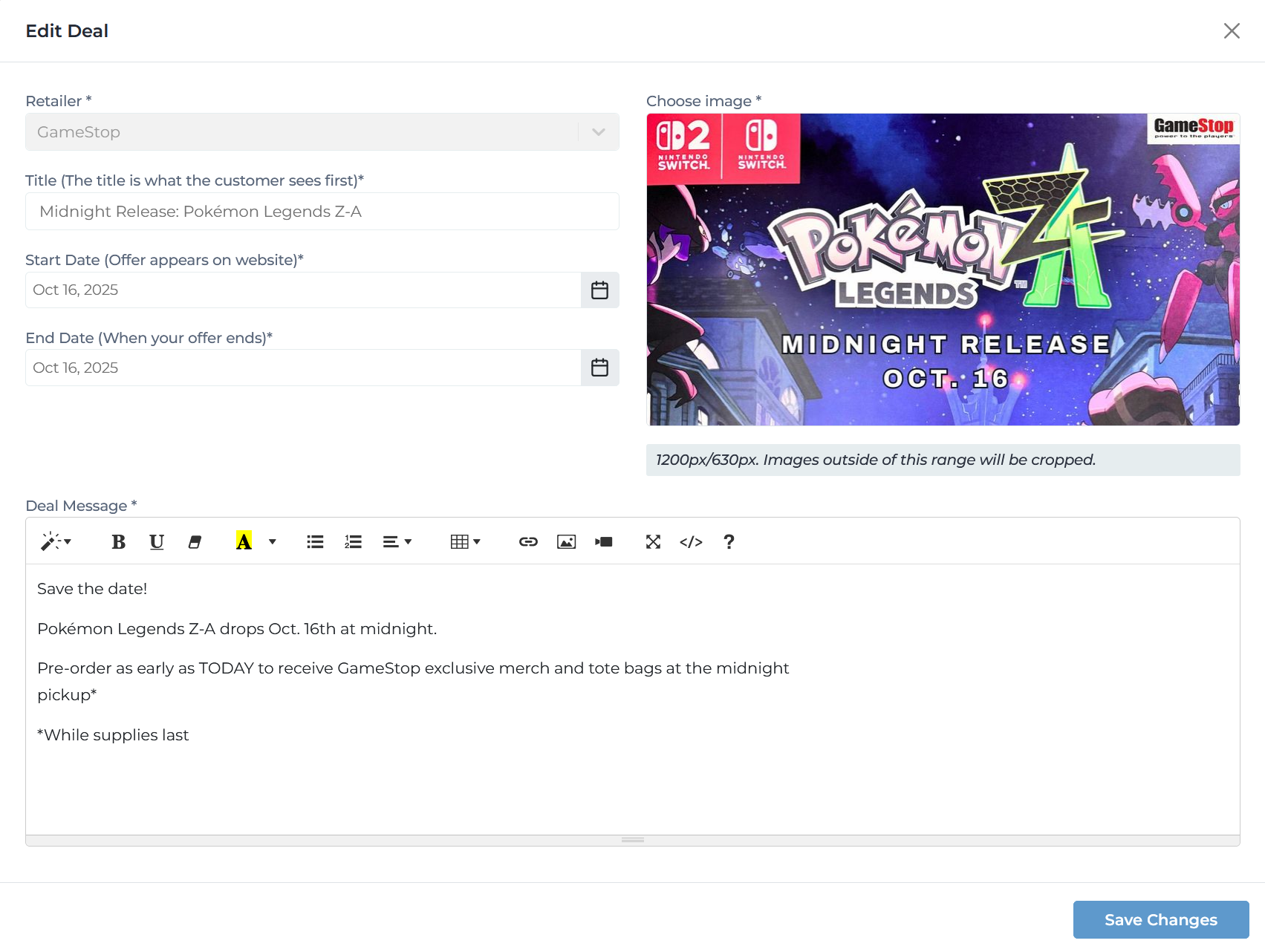
Edit deal form with all fields and configuration options
Key Features
Update retailer association, title, dates, and promotional message
Upload new deal images with automatic cropping (1200px/630px recommended)
Assign deals to multiple centers (System/Company Managers only)
Deals automatically delete 60 days after expiration date
Deal Fields & Properties
Select the retailer offering this deal
Note: Only active retailers in assigned centers appear
The promotional title customers see first
Example:
Save 15% off your purchase
When the deal becomes active on the website
Note: Cannot be in the past when editing active deals
When the promotional offer expires
Note: Deal auto-deletes 60 days after this date
Detailed description of the promotion
Features:
- • Bold
- • Italic
- • Underline
- • Lists
- • Links
- • Images
Promotional image for the deal
Specs: 1200px × 630px (images outside this range will be cropped)
Select which centers display this deal
Note: Center Managers see only their assigned center
Permission-Based Editing
Editing capabilities vary by user role. Select a permission level below to view specific capabilities.
Editing Capabilities:
Can edit deals within their assigned center only
Can only select retailers from their center
Full control over title, dates, message, and image
Can only assign to their specific center (no toggle list)
Cannot view or edit deals from other centers
Automatic Deal Deletion
To maintain database efficiency and prevent outdated promotions from cluttering the system, all deals are automatically deleted from the EyeOn server 60 days after their expiration date.
Usage Notes
- • The 'Last updated by' footer shows who made the most recent changes
- • Center Managers do not see the Centers section—it's hidden from their view
- • Editing a deal does not change its creation date or original creator
- • If a deal is assigned to multiple centers, all centers display the same content
- • Changes are published immediately upon clicking 'Save Changes'
Best Practices
When replacing deal images, ensure the new image matches the 1200×630px format to avoid cropping issues
Verify start and end dates when editing to avoid unintended activation or expiration
Always save changes before previewing the deal on the website to see accurate updates
Remember the 60-day auto-deletion rule when setting expiration dates for recurring promotions
Need Help with Deal Editing?
If you're experiencing issues editing deals or need assistance with multi-center assignments, contact our support team for help.
Contact Support