
Configure map appearance, behavior, and visual styling options
How to Configure Map Settings
Map Settings allow you to customize the appearance and behavior of your center map. These settings control colors, zoom levels, visual elements, and overall map styling to create the perfect look for your shopping center.
All settings changes are applied in real-time, allowing you to see the effects immediately. Remember to save your changes to preserve the new configuration across all map views and devices.
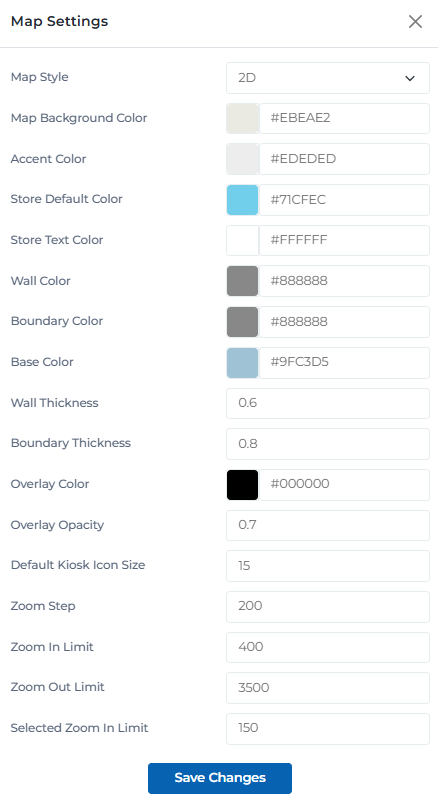
Map settings interface
Map Settings Categories
Organize your map configuration with these setting categories:
Basic map styling and visual appearance
Map Style
Choose between 2D and 3D map display modes
Map Background Color
Set the overall background color of the map
Accent Color
Primary accent color used throughout the map
Customize how retailers and stores appear on the map
Store Default Color
Default background color for retailer polygons
Store Text Color
Default text color for retailer names and labels
Wall Color
Color for building walls and structural elements
Boundary Color
Color for area boundaries and divisions
Control visual elements and layout properties
Base Color
Base color for map elements and structures
Wall Thickness
Thickness of wall lines in the map
Boundary Thickness
Thickness of boundary lines
Overlay Color
Color for map overlays and information panels
Overlay Opacity
Transparency level of overlay elements
Configure zoom behavior and navigation limits
Default Kiosk Icon Size
Default size for kiosk icons on the map
Zoom Step
Increment amount for zoom operations
Zoom In Limit
Maximum zoom in level allowed
Zoom Out Limit
Maximum zoom out level allowed
Selected Zoom In Limit
Zoom limit when a polygon is selected
User Permissions & Settings Access
All user types have full access to map settings with appropriate center restrictions.
Settings Management Capabilities:
Can adjust all map settings for their assigned center
Can save and apply settings changes
Can reset settings to default values
Can preview settings changes before saving
Configuration Tips & Best Practices
Color Scheme Best Practices
- • Choose colors that provide good contrast for readability
- • Use consistent color schemes across all map elements
- • Test color combinations on different devices and screen types
- • Consider accessibility guidelines for color contrast
- • Use brand colors when appropriate for your center
- • Avoid overly bright or distracting colors
Zoom Level Optimization
- • Set zoom limits appropriate for your center size
- • Test zoom levels on different device types
- • Ensure important details are visible at all zoom levels
- • Consider user experience when setting zoom steps
- • Balance between detail and overview visibility
- • Test zoom behavior with different polygon selections
Visual Element Balance
- • Adjust thickness values to create visual hierarchy
- • Use opacity settings to create depth and layering
- • Ensure text remains readable with chosen colors
- • Test visual elements on different screen sizes
- • Maintain consistency across all map elements
- • Regularly review and adjust visual settings
Settings Management
- • Preview changes before saving to avoid mistakes
- • Document custom settings for team reference
- • Test settings on actual kiosk displays
- • Save settings frequently to avoid losing changes
- • Reset to defaults if settings become problematic
- • Coordinate with team members on major setting changes
Ready to Configure Your Map Settings?
Access the Portal CMS to customize your center map appearance and behavior.
Access Portal CMS